DAW track
Insert Budgie Audio Link
 Budgie Ultimate RackUser Manual
YOUR PLUGINS. YOUR WORKFLOW.
Follow the illustrated setup, then explore the Universe, random selection, style-based Shelves, track Racks and DAW integration. Numbered callouts point to the controls you need.
01
Insert Budgie Audio Link
Confirm connection and target track
Drag from Universe or Shelf to Rack
Adjust the sound; save your DAW project
The first launch scans your plug-ins. Wait for the library to appear. Use Plugin Manager to scan again when needed.
Insert Budgie Audio Link as an effect on an audio track, an instrument track’s effect chain, or a bus. Confirm that a live Audio Link appears in the app.
Switch to DAW Link and select its track. Check the track name above the left Rack. Start with one test track.
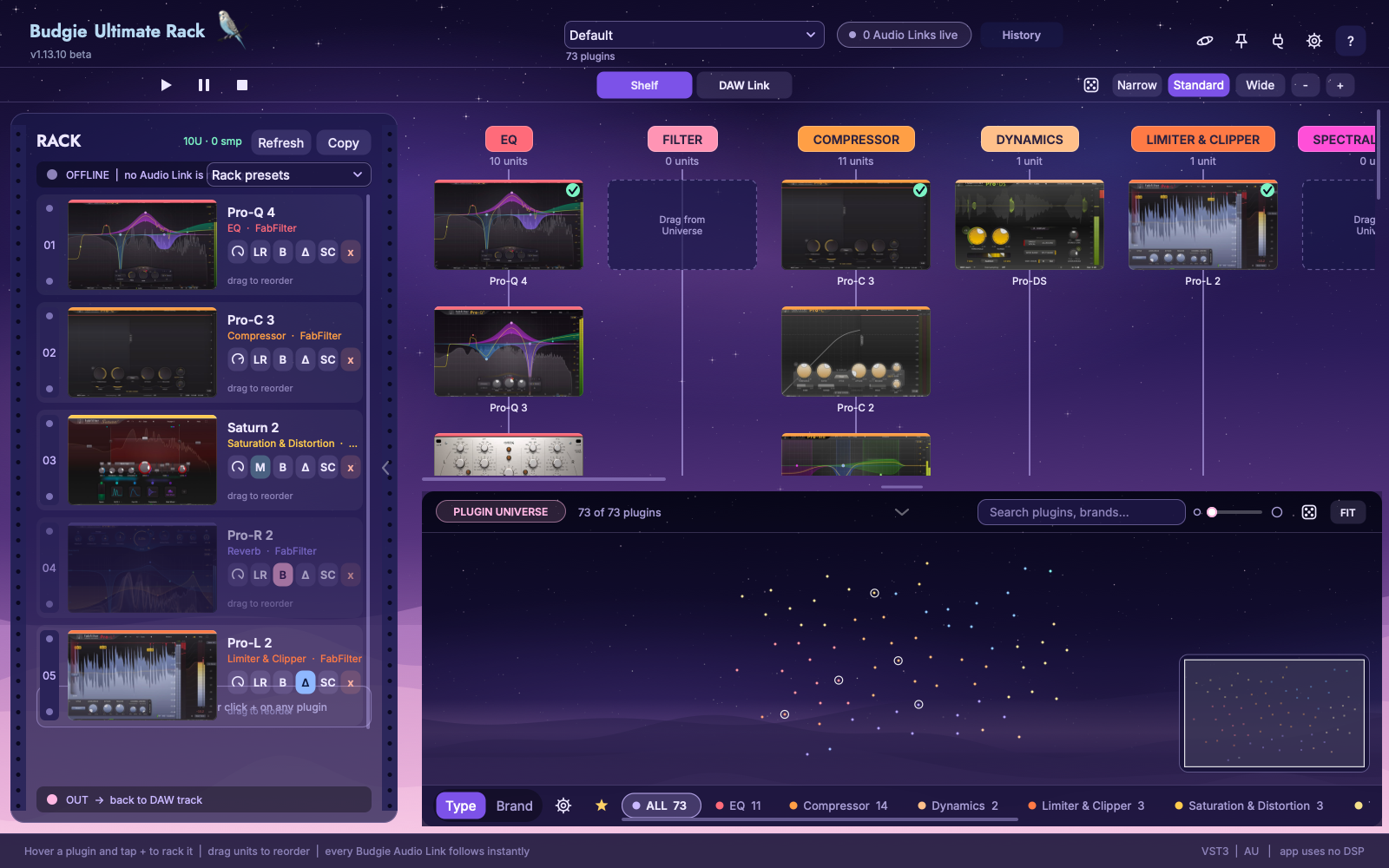
Click EQ in the Universe, then click the same tab again to enter the cards. Drag a plug-in into the left Rack. You can also drag from the Shelf or use the card’s add action.
Click a plug-in’s name or picture in the Rack to open its native editor. Play audio, adjust the effect, and save the DAW project. Rack edits reach Audio Link automatically; no Send command is required.
02
↗ Full image| Area | Purpose |
|---|---|
| Plugin Universe | Find installed effects by category, brand, search, favourites, or random exploration. |
| Shelf | Keep favourite and alternative tools ready. Shelf entries do not process audio. |
| Rack | The selected target track’s serial effect chain, running from top to bottom. |
| DAW Link page | View connected Audio Link tracks, their chains, and track controls together. |
| Budgie Audio Link plug-in | Hosts the effects, processes audio, and saves plug-in state in the DAW project. |
03
This manual follows the current release. The macOS baseline is 12.0, with Apple Silicon and Intel support. Audio Link currently provides AU, VST3, and AAX; Windows adaptation is in progress. Check your account for the versions actually available.
| Component | macOS installation path |
|---|---|
| Manager app | /Applications/Budgie Ultimate Rack.app |
| VST3 | /Library/Audio/Plug-Ins/VST3/Budgie Audio Link.vst3 |
| AU | /Library/Audio/Plug-Ins/Components/Budgie Audio Link.component |
| AAX | /Library/Application Support/Avid/Audio/Plug-Ins/Budgie Audio Link.aaxplugin |
Restart the DAW after installation and rescan AU / VST3 if necessary. Third-party effects must be installed, licensed, and compatible with the host architecture on this computer. They are not included with Ultimate Rack.
In licence-enabled builds, Settings → Activate… opens the Ultimate Rack licence page in Budgie Hub. Sign in or activate, then return to Settings and click Check again. Some test builds disable licence checking and display that state. Trial length, download availability, and purchase terms follow the current Hub and website.
04
 ↗ Full image
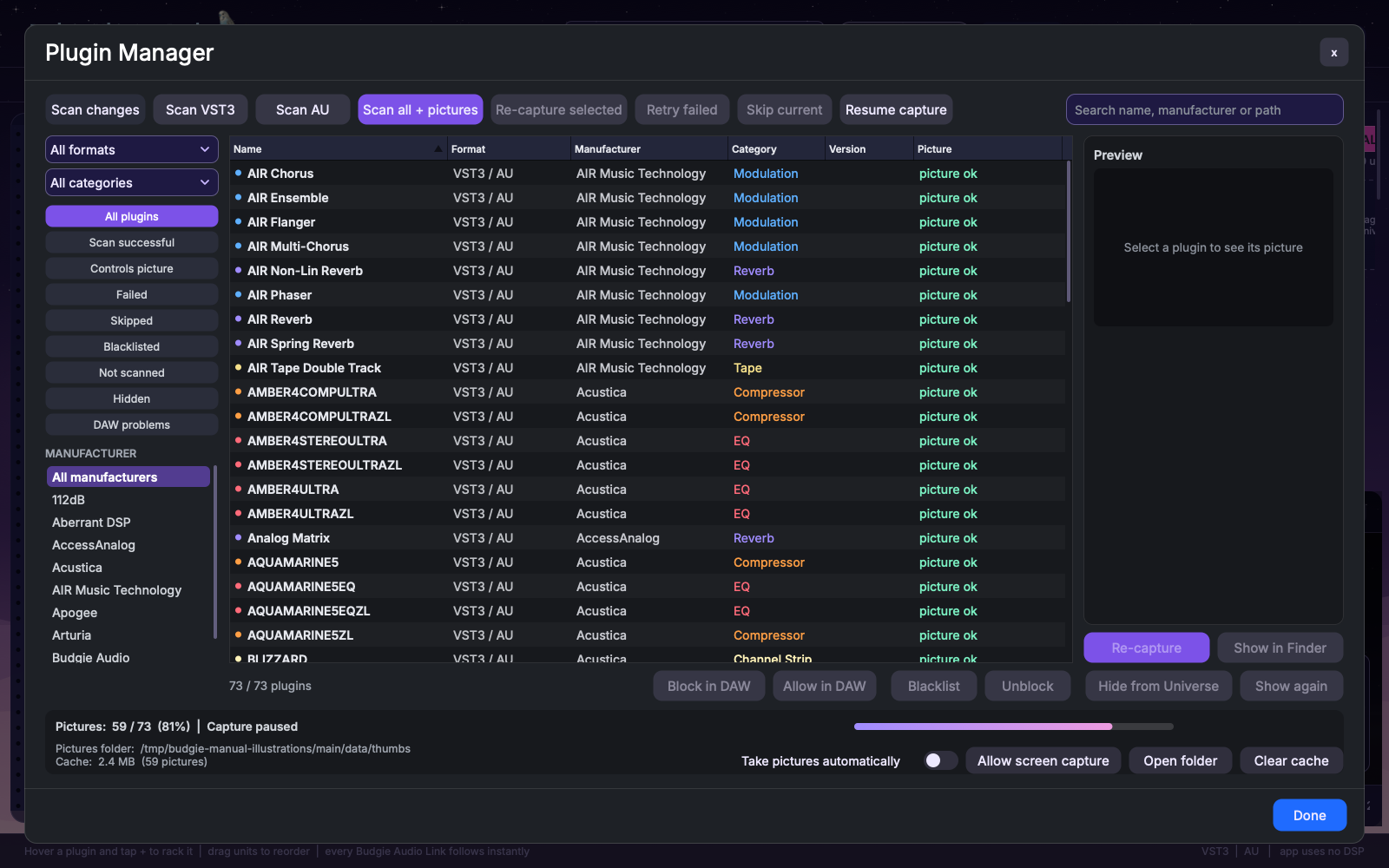
System and user Audio/Plug-Ins folders are scanned by default. Add custom locations in Settings, then run Scan plugins.
Filter Plugin Manager by name, format, and category to inspect the results. The library focuses on audio effects rather than instrument plug-ins.
When both exist, Settings lets you prefer VST3 or Audio Unit. CLAP metadata may be recognised, but the current Link does not host CLAP.
Change the category in Plugin Manager or a plug-in’s Universe context menu. Automatic restores automatic classification. Subcategories depend on tag data; every vendor model cannot be assumed to classify perfectly.
05
↗ Full imageThumbnails come from images shipped with plug-ins, background captures by Thumbnail Helper, and updates when Audio Link opens an editor. A named placeholder appears when no photograph is available; it does not mean the plug-in cannot run.
Check Use GUI images shipped inside plugins and Auto-capture missing thumbnails in Settings. An isolated helper processes captures one at a time.
Inspect its status in Plugin Manager. Use Retry failed or recapture the selected effect. Complete vendor activation and dismiss first-run dialogs before retrying.
Allow screen capture requests the macOS capture permission needed by some GPU-rendered editors. Follow any system instructions to restart the app.
Pause / Resume controls capture work; Open folder reveals the cache. Clear cache removes stored pictures and requires them to be generated again, so use it only when needed.
06
 ↗ Full image
 ↗ Full image
 ↗ Full image
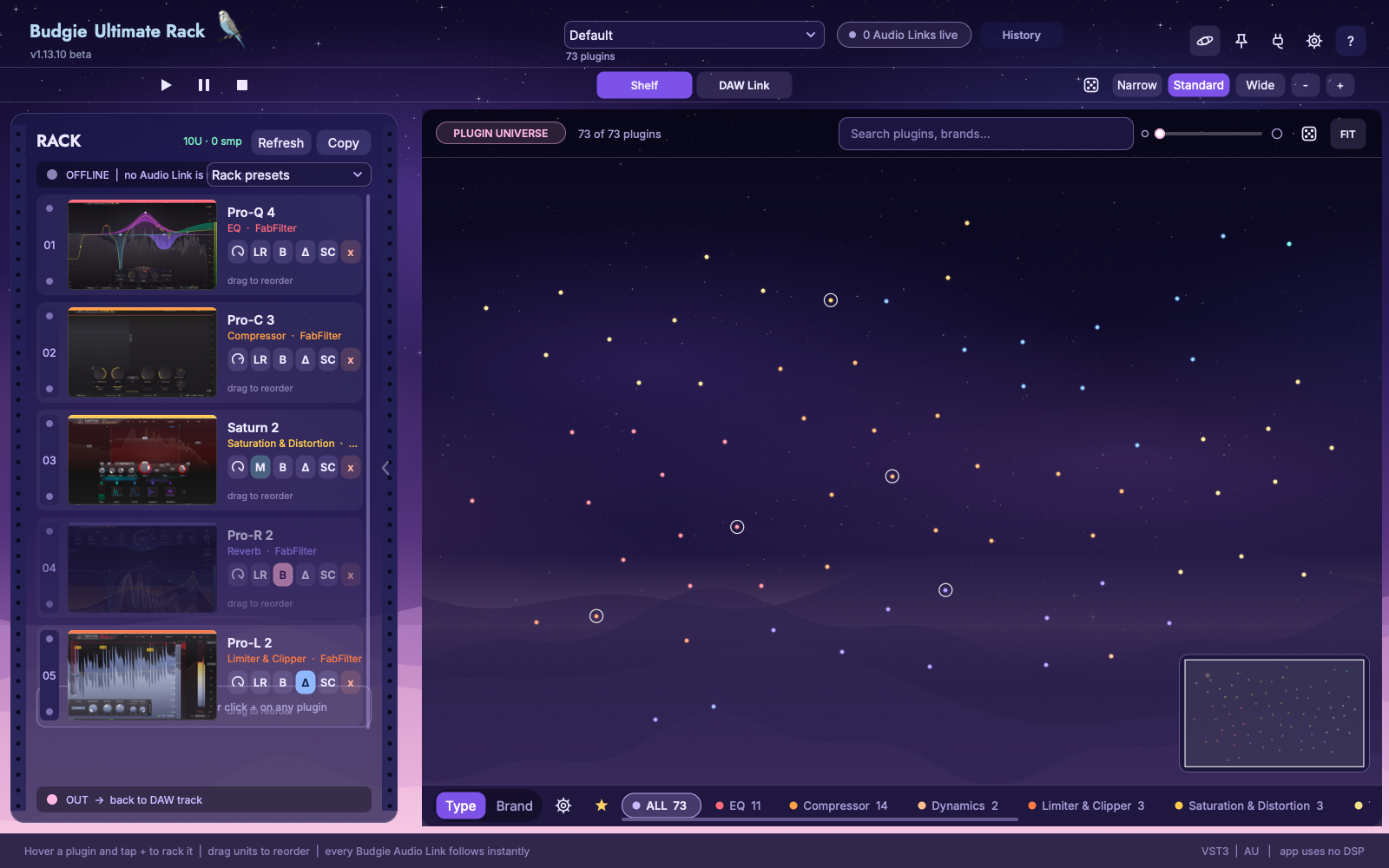
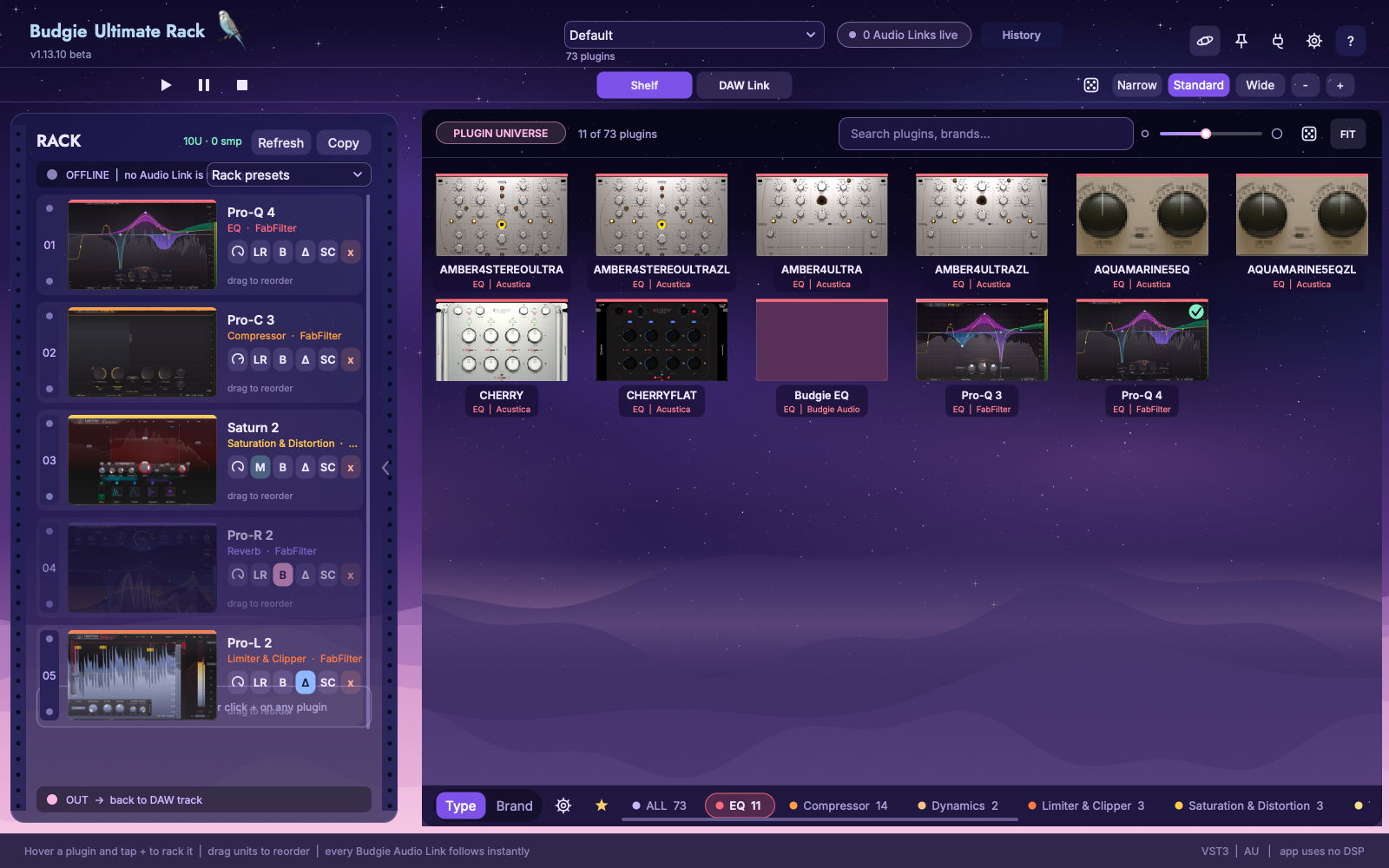
Type groups colours by effect category; Brand browses by vendor. Each dot represents a plug-in. Counts depend on your local library.
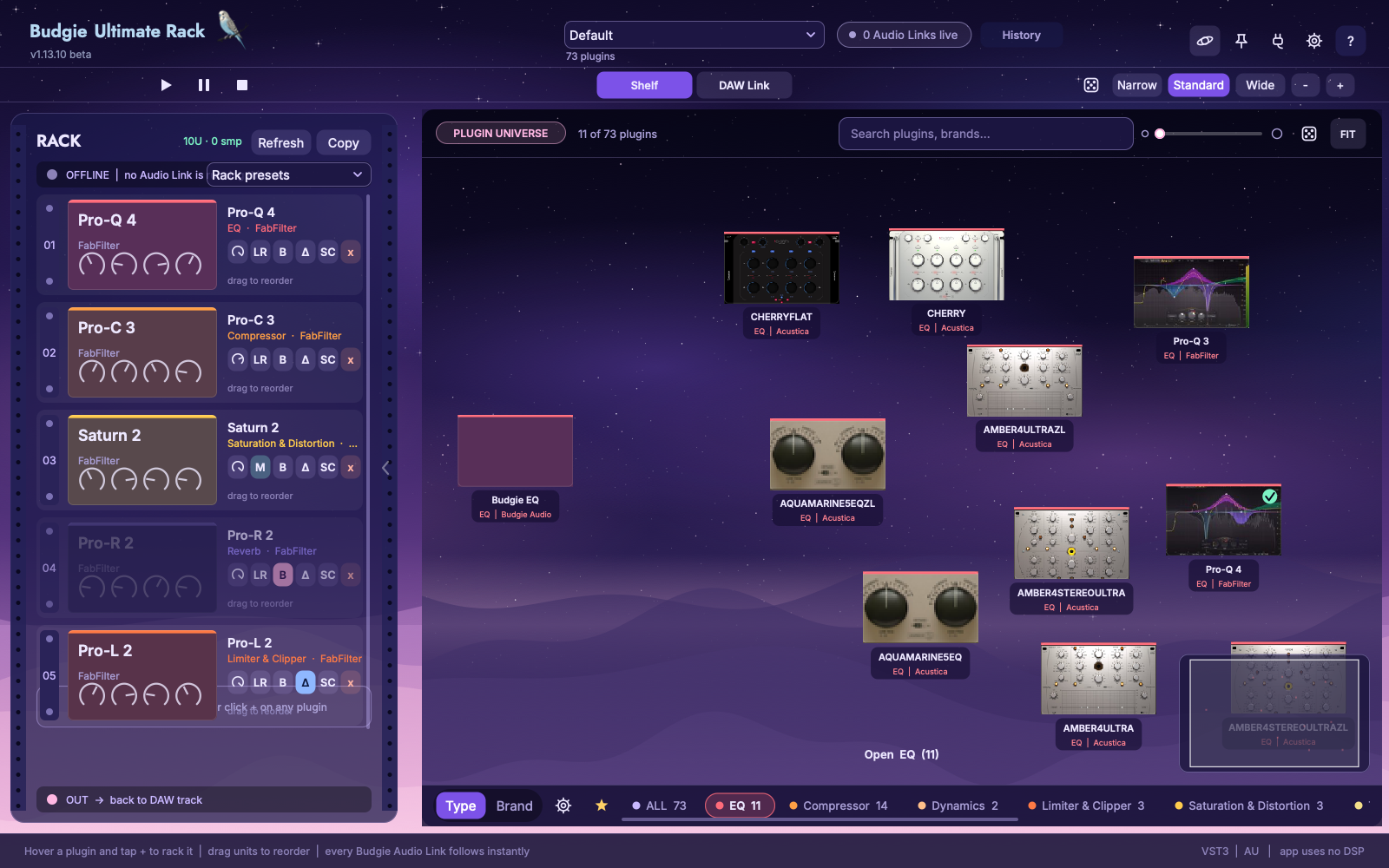
EQ stars remain highlighted and the camera focuses on the category while other categories fade. This is still the Universe view.
Click EQ again, or click a matching star / press Enter while the category is spotlighted, to enter the card grid. Camera and positions transition smoothly.
Use the zoom bar, pinch, or Command + scroll to zoom. Ordinary scrolling moves the view or grid. FIT frames the current range; ALL returns to the complete Universe. Drag cards into the Rack or Shelf; Add to rack is also in the context menu.
Search narrows results by plug-in name, vendor, and related information. Search, category, and favourites affect the candidate set. If an effect seems missing, clear search and return to ALL. Use the favourite control or context-menu action to include frequent choices in the ★ view.
07
 ↗ Full image
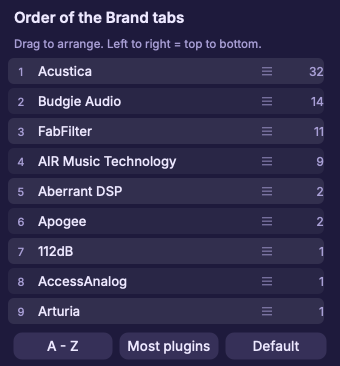
Open the category order panel with the bottom gear and drag categories to reorder the tabs. Subtype filtering uses the category tab’s context menu, as shown below.
Right-click the bottom category tab
Choose a subtype and check its count
Search by name or choose an effect
Right-click a bottom category tab such as Compressor to open subcategories with counts. Compressors can be narrowed to VCA, FET, Optical, and other types; EQ can include Parametric, Passive / Pultec, and Mastering. Available entries and counts depend on your local tag data.
For a VCA bus compressor, right-click Compressor, check the VCA count, and select it.
Entries with a zero count are disabled. Additional tags may also appear, and a plug-in can have multiple tags.
All of EQ / All of Compressor restores that whole category. ALL restores the complete library. To change a plug-in’s main category, use its own context menu.
08
↗ Full imageThe Shelf stores plug-in references in columns. Organise them by EQ, compression, reverb, or your own working habits. Placing an effect here does not insert it into a DAW audio chain.
| Action | Result |
|---|---|
| Drag from the Universe into a column | Keep the effect ready to drag into a Rack later. |
| Drag a card within a column | Reorder alternatives. |
| Drag between columns | Move the reference; hold Option to copy while keeping the original. |
| Double-click the column name / right-click Rename | Rename the column. |
| Drag a column header | Reorder columns. |
| Clear Shelf row / Delete Shelf row | Empty or remove the column. This does not uninstall the effect. |
Narrow / Standard / Wide and − / + adjust column width to trade detail for the number of visible tools.
09
↗ Full imageSave columns and alternatives for a style
Save effect order and plug-in states
Save the Audio Link states in the project
These are separate save targets that can be used together.
| Type | What it saves | Where to use it |
|---|---|---|
| Shelf preset | Column layout, names, and alternative plug-ins for a style or task. | Top Shelf preset menu. |
| Rack preset | The current effect order, slot controls, and saved plug-in state. | Rack presets in the left panel. |
| DAW project | Each Audio Link instance, its chain, and plug-in state. | The DAW’s project save command. |
The Shelf menu provides Default, Factory Presets, User Presets, Load…, Save, Save As…, Save As Default, deletion, and Open Preset Folder. Save your own R&B Vocal or Rock Drums collections with Save As…, then switch through User Presets. A pinned preset menu stays open; unlock it, close it, or press Escape while it has focus to dismiss it.
Use Save rack as preset… for a processing chain. Set this chain as Default makes new tracks start with that chain; Reset Default to an empty chain restores an empty default. Loading a Rack preset changes the current Rack: check the target track and save the existing version first.
10
↗ Full image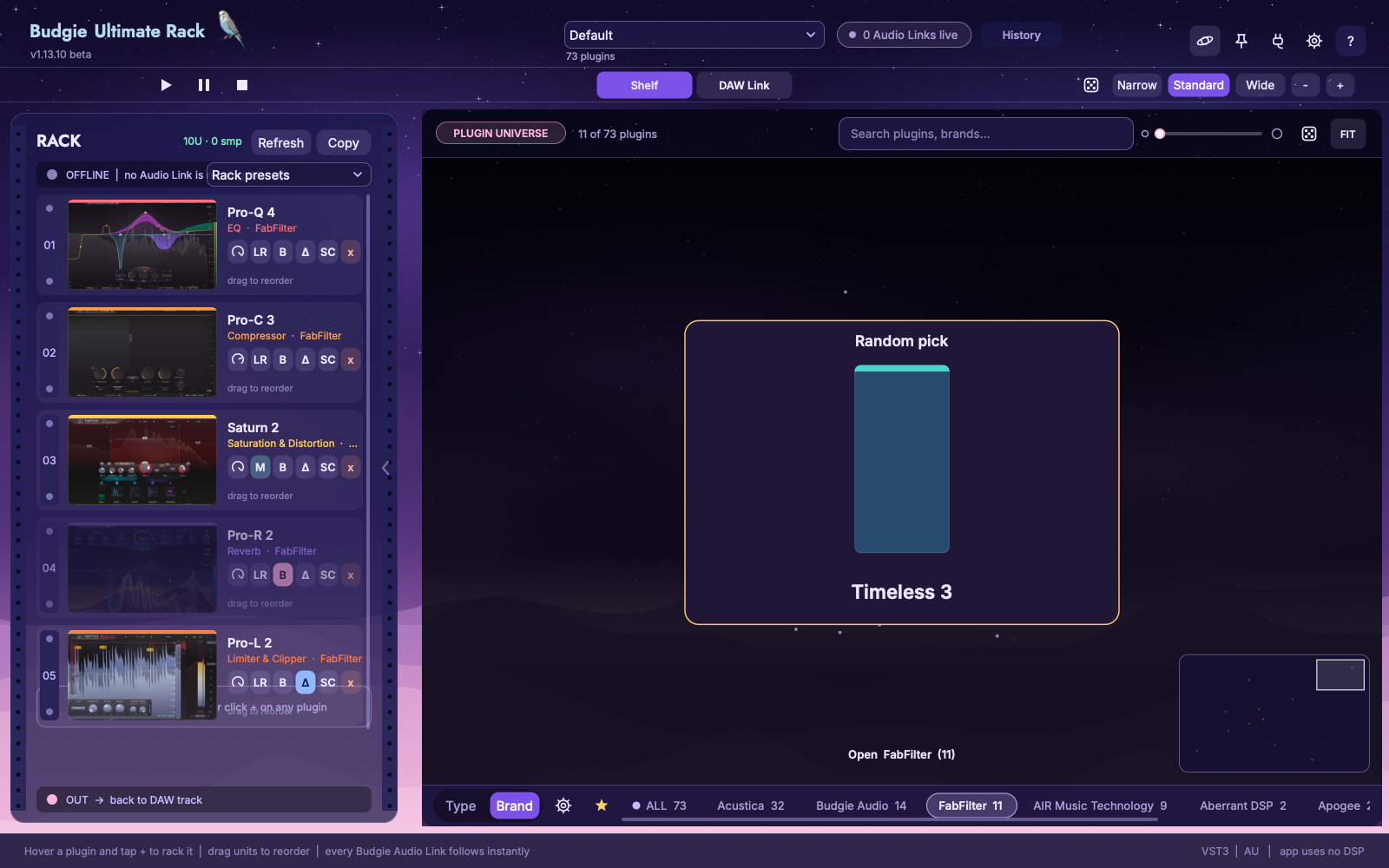 ↗ Full image
| Feature | Scope and result |
|---|---|
| Universe dice · Surprise me | Chooses a matching plug-in, skips the current selection, and flies to the result with its name shown. Search and filters constrain the pool. With only one candidate there may be no different choice. |
| Shelf dice · Fill Shelf | Matches each column name to a category or tag and fills it with up to 7 random plug-ins. Fewer are used when the pool is smaller. Unmatched custom columns remain unchanged. |
For another compressor, select Compressor / VCA before using the Universe dice. For a fresh set of alternatives, save your Shelf first, use the Shelf dice, then drag useful choices into the Rack. Undo can restore the previous organisation.
11
↗ Full imageCheck the current target name and live connection before editing.
Drag from the Universe or Shelf. Effects run from top to bottom. Reordering existing slots retains their instances and settings.
Click its name or picture to open the actual editor. The current workflow uses a native floating window for the same instance; manually opening the Link editor first is not required.
In DAW Link, drag an effect to another track while holding Option to copy it with settings. Ordinary dragging differs from copying: check the target and insertion point before releasing.
A slot’s x removes that effect; Rack Refresh clears the current chain. Save useful chains before replacing them, and use Undo for accidental edits.
12
↗ Full image| Control | Purpose |
|---|---|
| MIX | Independent wet/dry blend for this slot. Drag vertically to adjust. |
| LR / M / S | Process the full stereo signal, Mid, or Side. Check mono compatibility when appropriate. |
| B | Bypass this effect while retaining latency alignment for comparison. |
| Δ · Delta | Listen to the difference introduced by the effect. This is a comparison tool; do not accidentally leave it in the final output path. |
| SC | Enable this slot’s external sidechain behaviour after routing a source into Audio Link in the DAW. |
| x | Remove this slot. |
Audio Link aligns wet and dry paths using reported plug-in latency and reports chain latency to the DAW. Lookahead, oversampling, or mode changes can alter latency. Final behaviour still depends on the host and third-party effect reporting and handling latency correctly.
13
Main audio passes through the Rack chain
Choose the detector source in the DAW
The effect must expose a native sidechain input
Choose External / Ext inside the compressor, then play the source and inspect SC and gain reduction.
Logic: use the Side Chain menu above Audio Link. REAPER: send the source to channels 3/4 of the Link track. Cubase / Nuendo: enable Audio Link’s sidechain input, then create a sidechain send from the source track.
Turn on SC for the intended effect in Rack or Audio Link. Play the source and check the help/status indication for incoming audio.
Use an effect with a native sidechain input. SC routes the source to that input. In effects such as Pro-C, also select External internally. The effect’s own parameters control its response to the sidechain.
Compare with B, MIX, and the source enabled/disabled. If no signal arrives, check source playback, the host send, and the target Audio Link instance.
14
 ↗ Full image↗ Full image
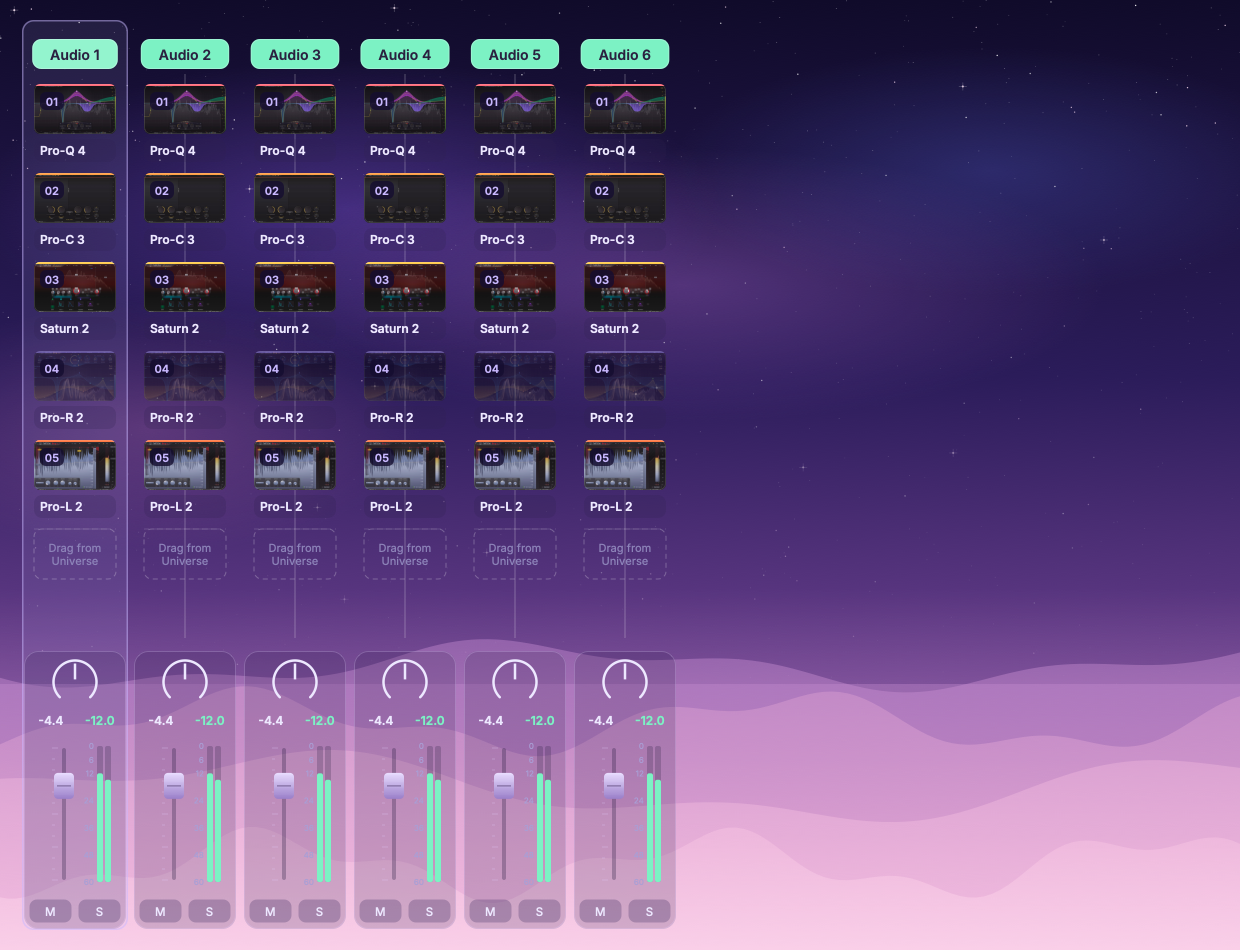 ↗ Full image
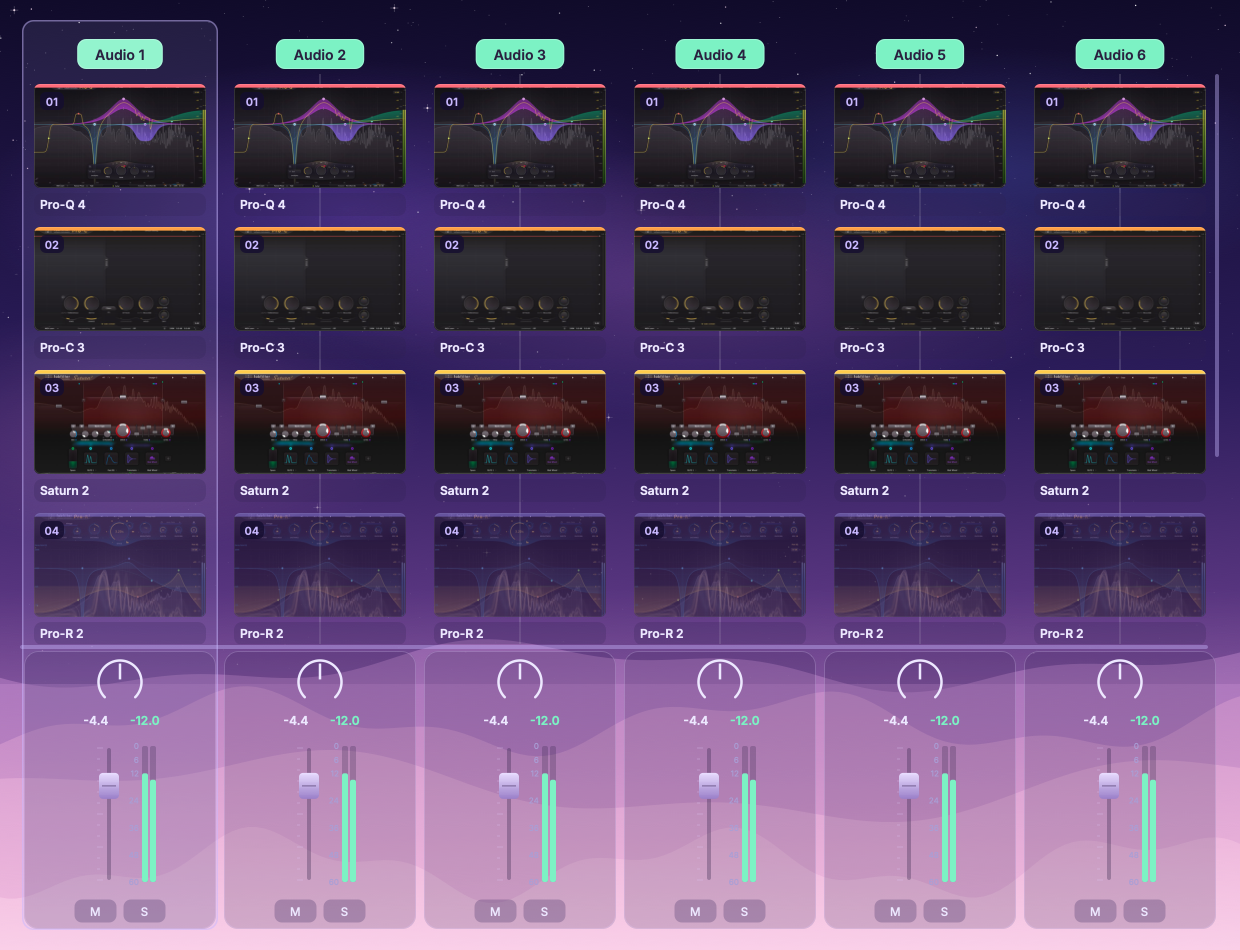
DAW Link supports Logic Pro, Ableton Live, Nuendo, Cubase, and REAPER, with more DAWs planned. A second display makes it easier to keep Ultimate Rack and your DAW visible side by side.
The DAW Link page shows tracks that have Budgie Audio Link inserted. Selecting one brings its chain into the left Rack. When host control is connected, selection in the DAW can also drive the app’s focus.
| Action | Behaviour |
|---|---|
| Click a track | Change the editing target. Check the highlight and track name. |
| Shift selection / marquee | Select multiple tracks; drag in empty track-view space to marquee-select. |
| Fader and PAN | Operate on the selected group. Fader moves retain existing relative offsets, limited by each track’s range. |
| M / S | Control mute and solo using the explicit set of selected tracks. |
| Mixer / Detail and width | Choose the display emphasis or resize columns to fit more tracks. |
15
Insert Audio Link and confirm chain playback
Choose the current host
Configure OSC / MIDI Remote or the host interface below
Selection, fader, PAN and M / S
| DAW | Setup |
|---|---|
| Ableton Live | In Live, go to Settings → Link, Tempo & MIDI → Control Surface and select Budgie UltimateRack. Set both input and output to Budgie Rack Remote. The script is installed in the default User Library/Remote Scripts folder. Insert Audio Link on the tracks you want to manage. |
| REAPER | Choose REAPER in Settings and insert the VST3 version of Audio Link on each target track for track control. Host control runs through the Link interface and normally needs no additional control surface. |
| Logic Pro | Start Ultimate Rack first. In Control Surfaces → Setup → New, enable Automatic Installation and connect both local OSC surfaces: BudgieRack (LogicTouch) and BudgieRack Mixer (LogicPad). No TouchOSC app is needed. |
| Cubase / Nuendo | Import the supplied Budgie_UltimateRack.js in MIDI Remote. Select Budgie Rack Remote for both ports. Optional compatibility path: Studio → Studio Setup → + → Mackie Control, using Budgie Rack Control for both ports. |
| Other AU / VST3 hosts | Audio Link rack processing can be used subject to host compatibility. Track follow, faders, PAN, mute, and solo do not necessarily have the same integration. |
After setup, click Check again in Settings. Test selection follow, level, PAN, and M / S on one track. Logic feedback depends on the current control-surface bank; the Cubase / Nuendo remote script also has a bank-limited range.
16
Open its editor from the current Rack
Establish an Audio Link proxy mapping
Record a short pass, verify playback, then save
Audio Link performs the audio processing inside the DAW. Its plug-in list selects effects in the Rack. The native editor path uses the same effect instance, and closing the manager does not unload the chain. Link’s overall MIX blends the full chain, separately from each slot’s MIX. When host track control is connected, OUTPUT can correspond to the track fader. Check the displayed track level before treating it as a separate gain stage.
Hosted parameters are exposed to the DAW through Audio Link proxy mappings. Touch a parameter in a hosted effect to establish an automation mapping, then use the DAW’s automation recording and editing workflow. The current implementation provides 512 proxy slots. Mappings are saved with the project.
17
↗ Full imageCheck the track and plug-in states
Wait for the Copied · count confirmation
Paste into the destination chain and check the sound
Choose the target track in Ultimate Rack and keep its Audio Link connected. Wait for loading and state synchronisation to finish.
Click Copy in the Rack header. Success shows Copied · count. Complete plug-in state is required; resolve any reported failure before continuing.
In a compatible version of MB Rack, use Paste in the intended processing chain. A transferred chain contains at most 8 effects; check the destination capacity before pasting.
Confirm order, plug-in state, and output, then use MB Rack’s multiband, serial/parallel, and Macro tools. After copying, the two chains operate independently.
Both products and versions supporting this integration are required. A shared library reduces duplicate scanning; third-party effects still need local installation and licences. Copy Current Rack copies only the current chain, not the entire Shelf or all tracks.
18
Built-in editor reference: the same effect-family images used in the MB Rack manual. Follow the controls in your installed version. Click any image to enlarge.
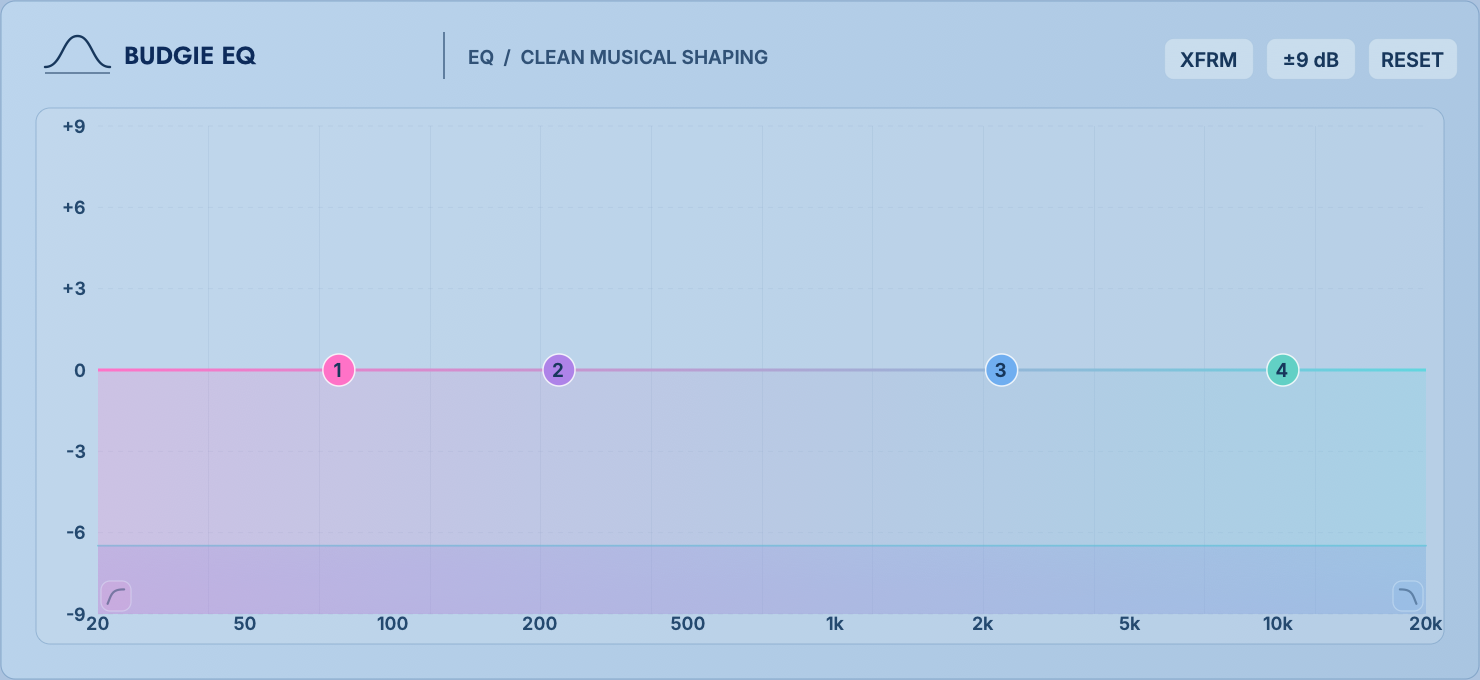
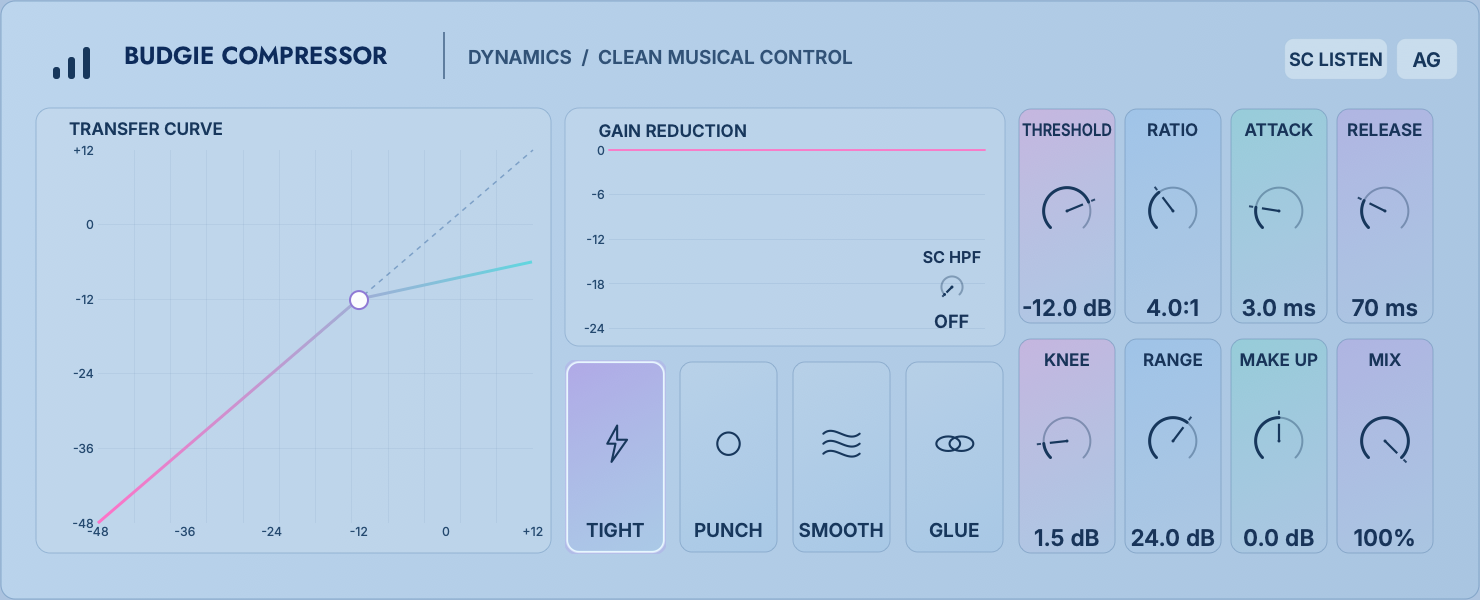
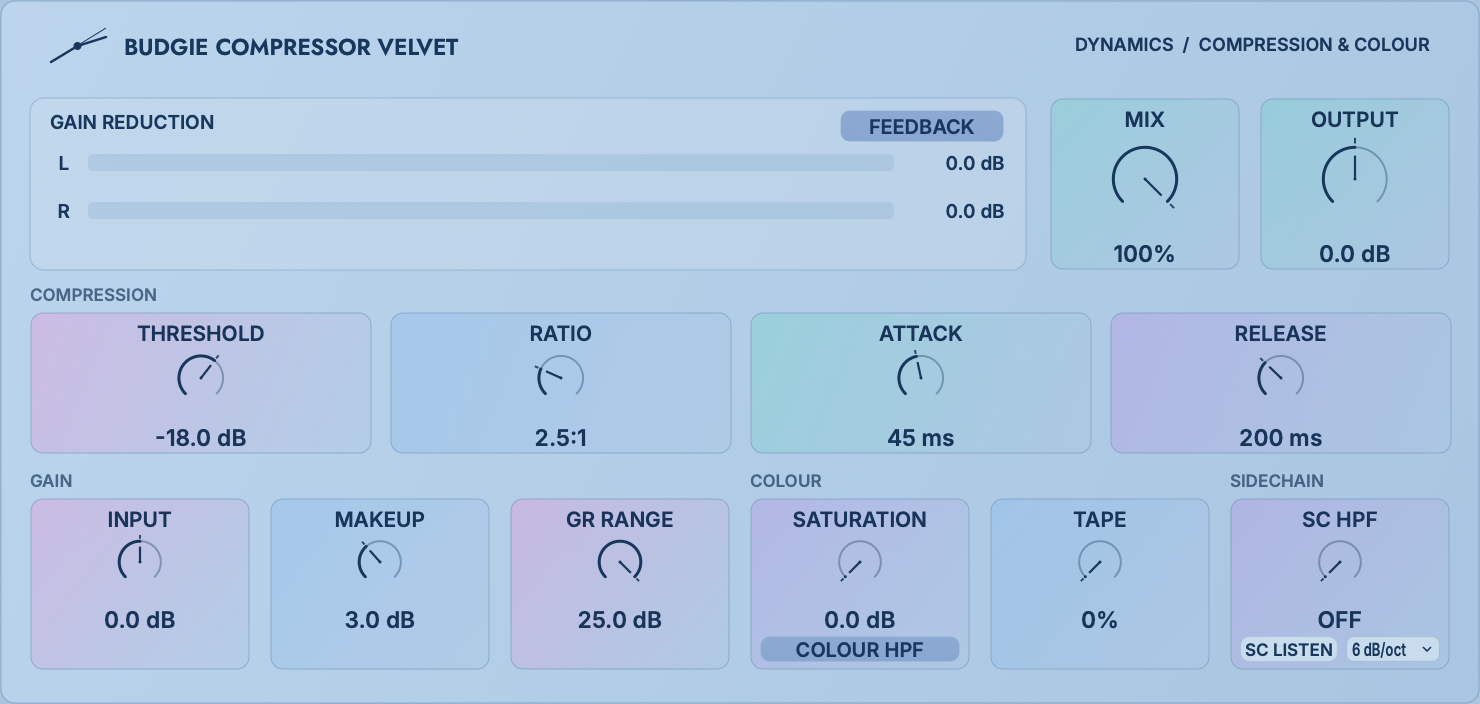
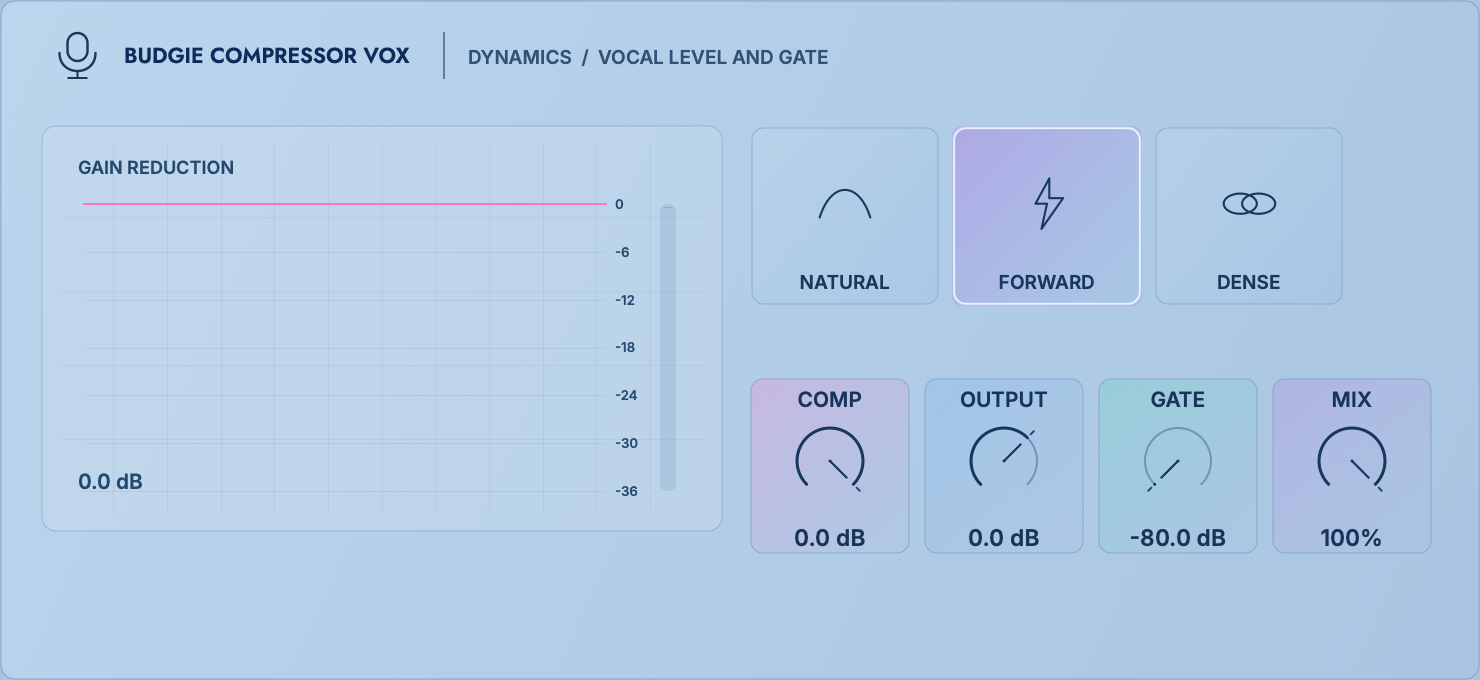
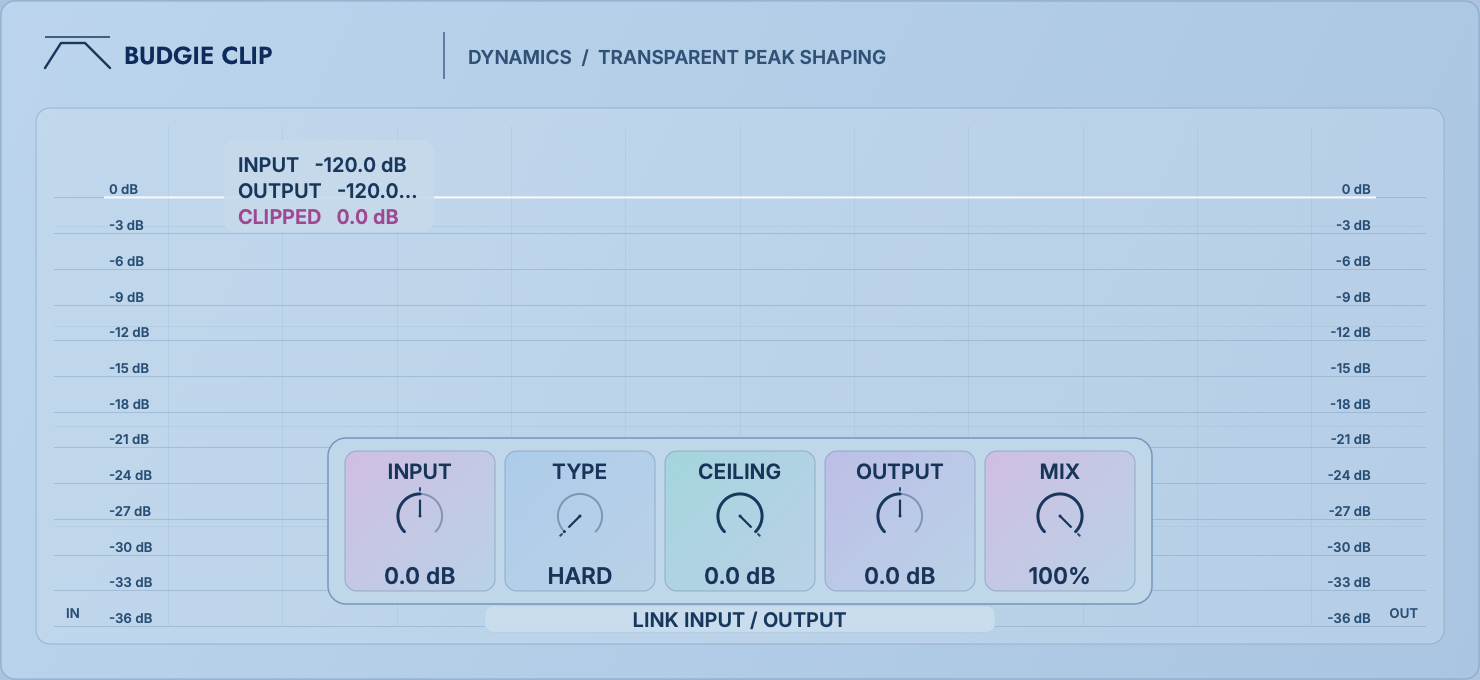
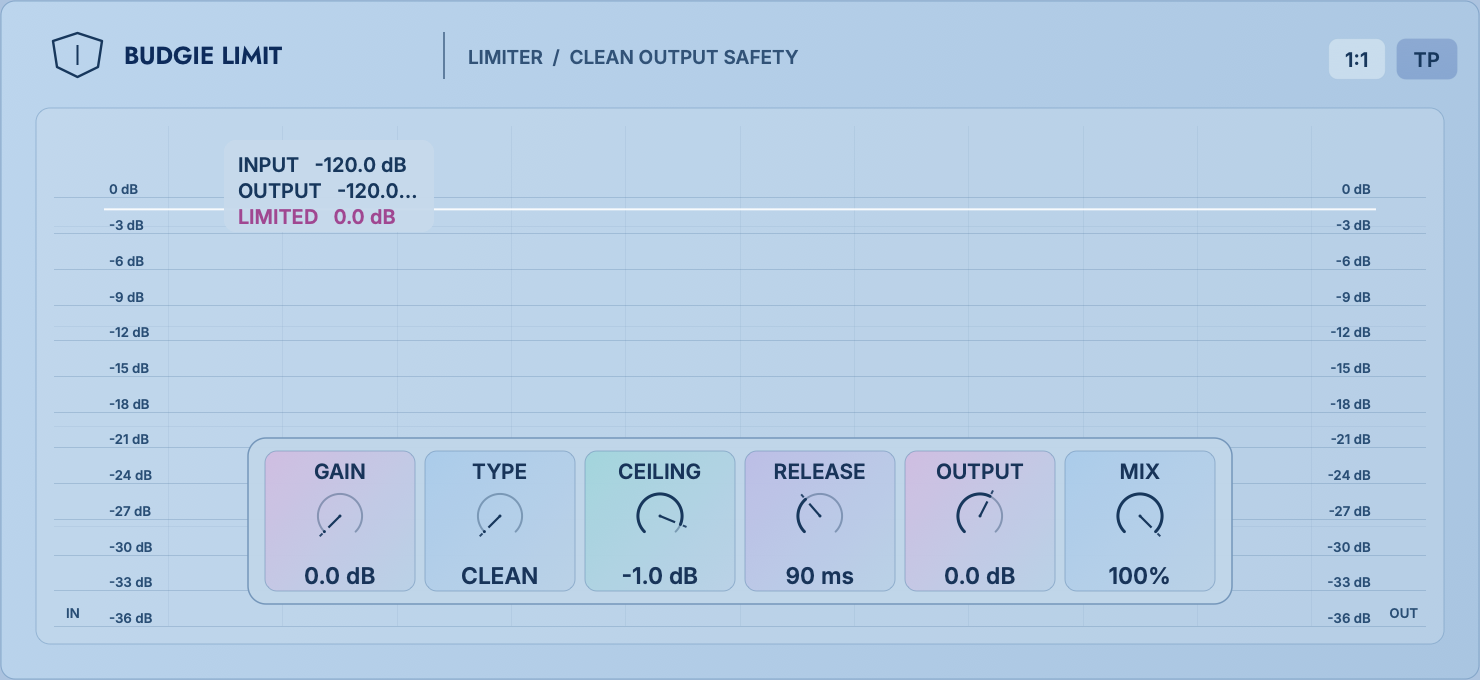
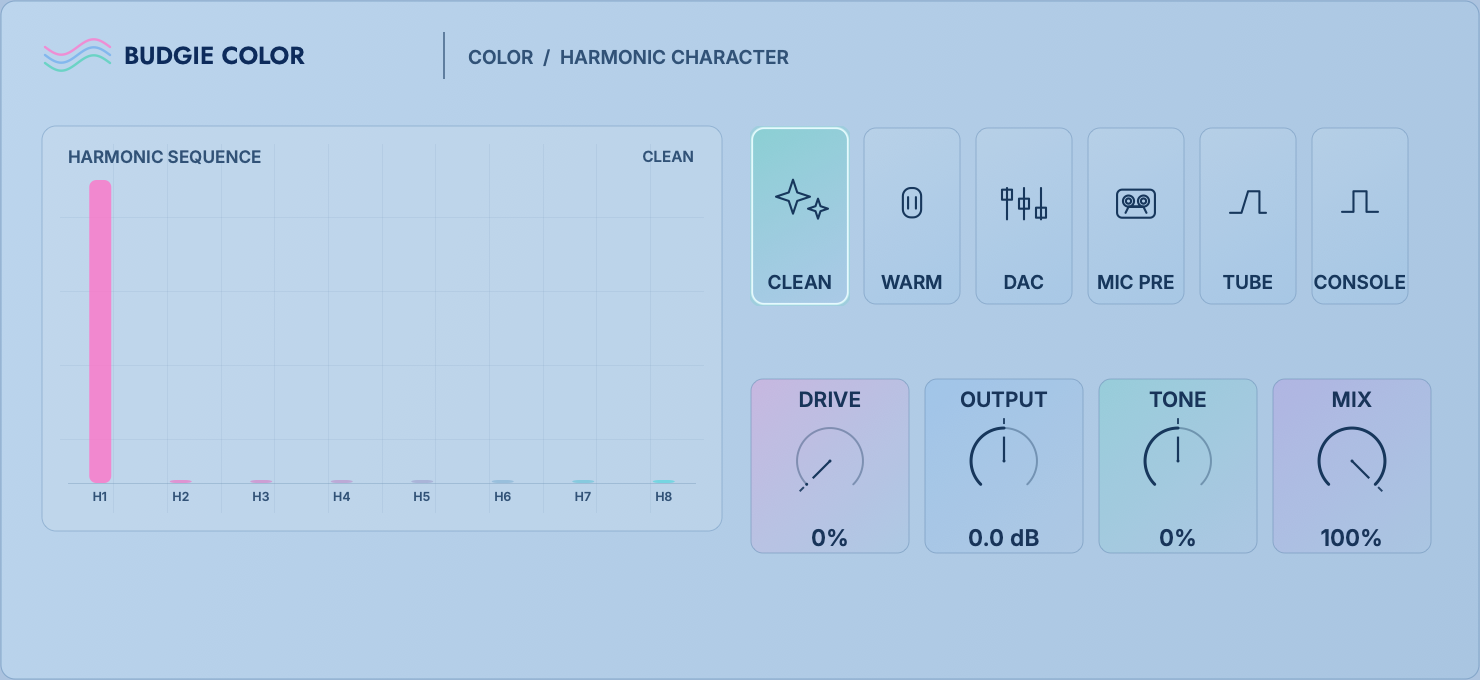
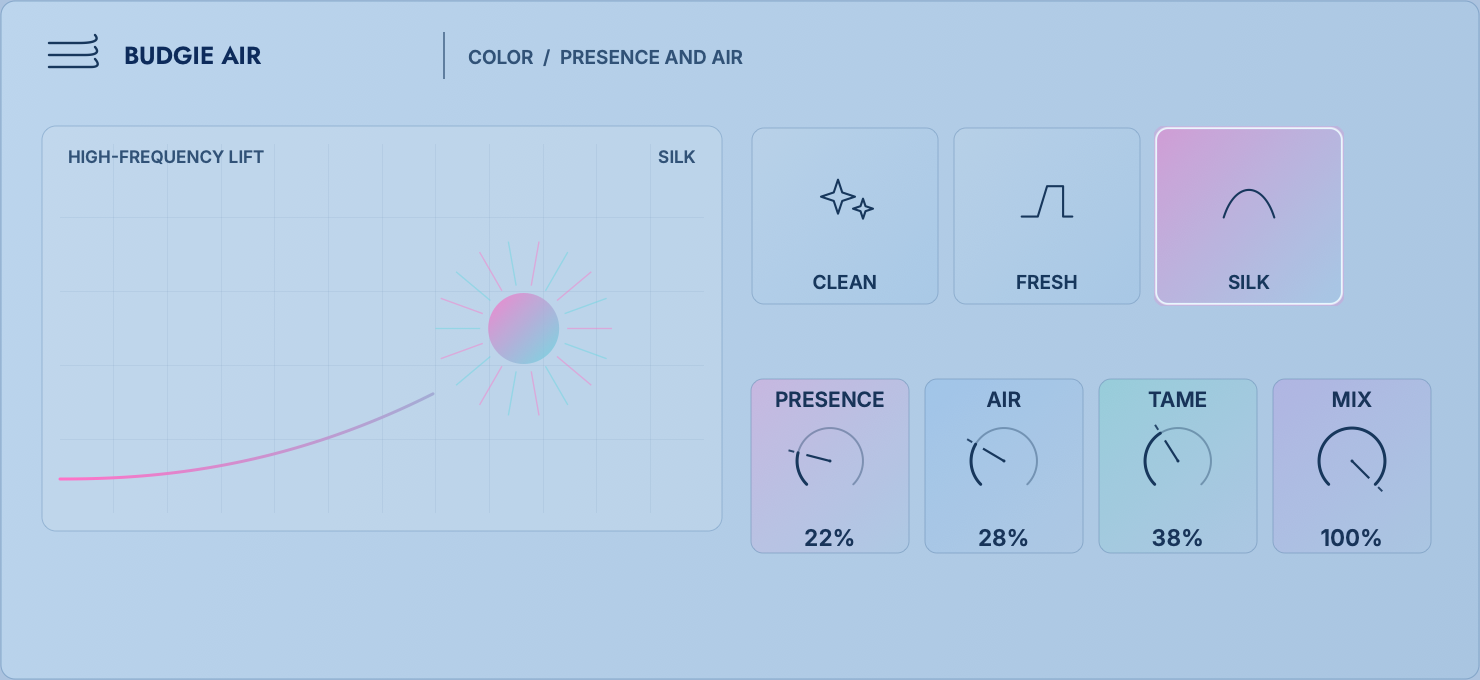
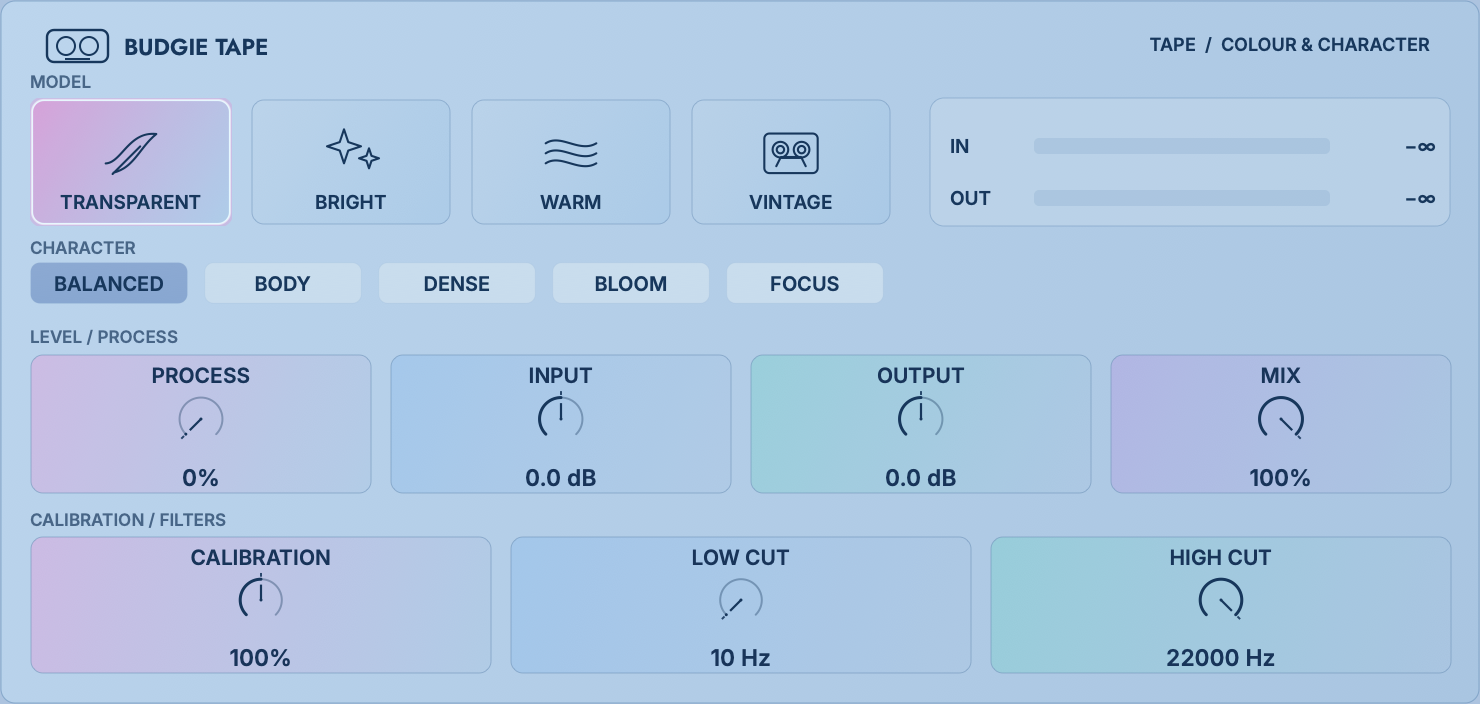
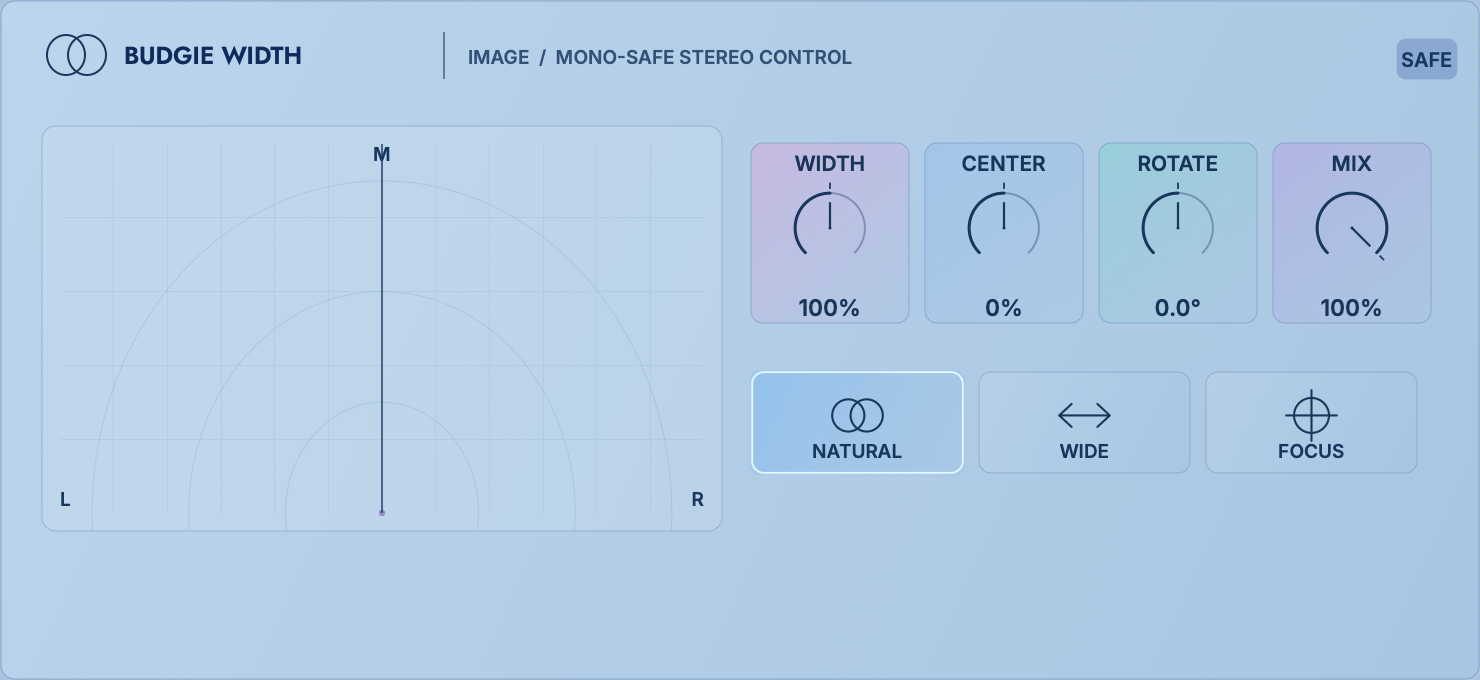
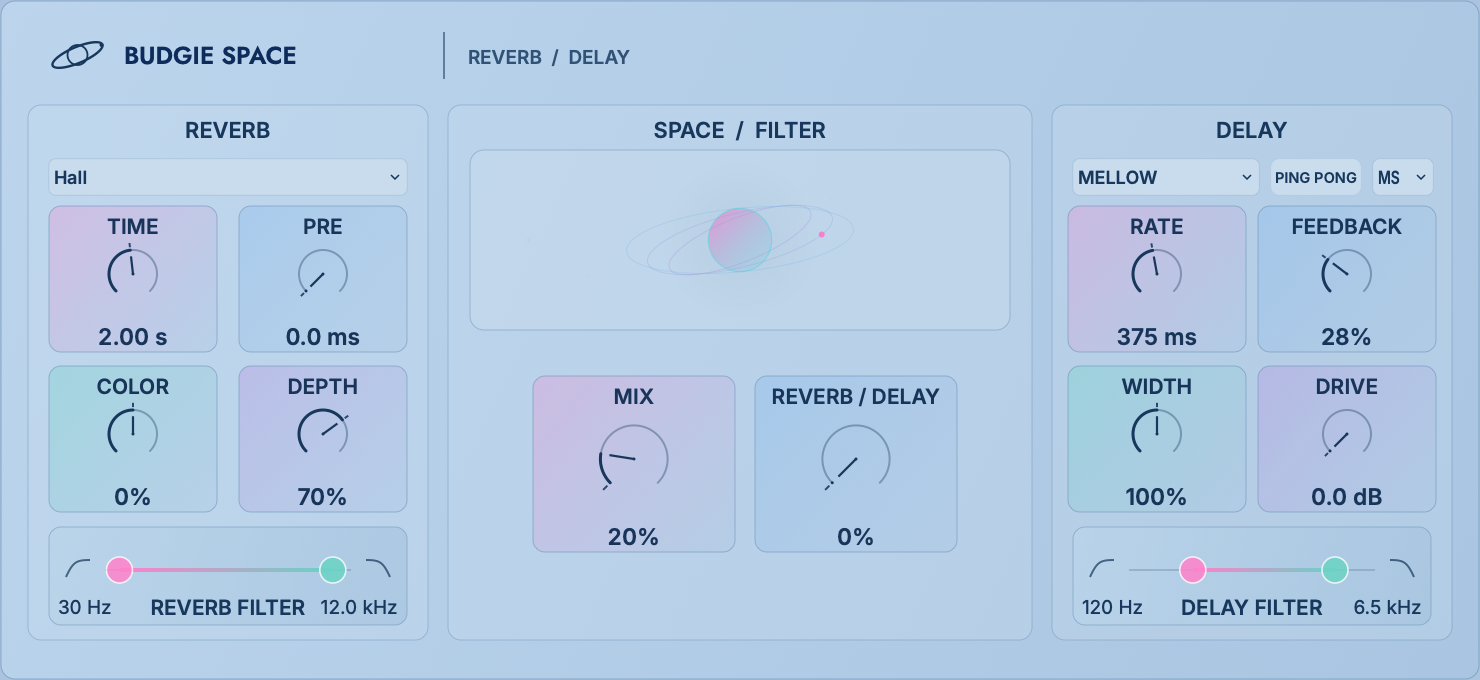
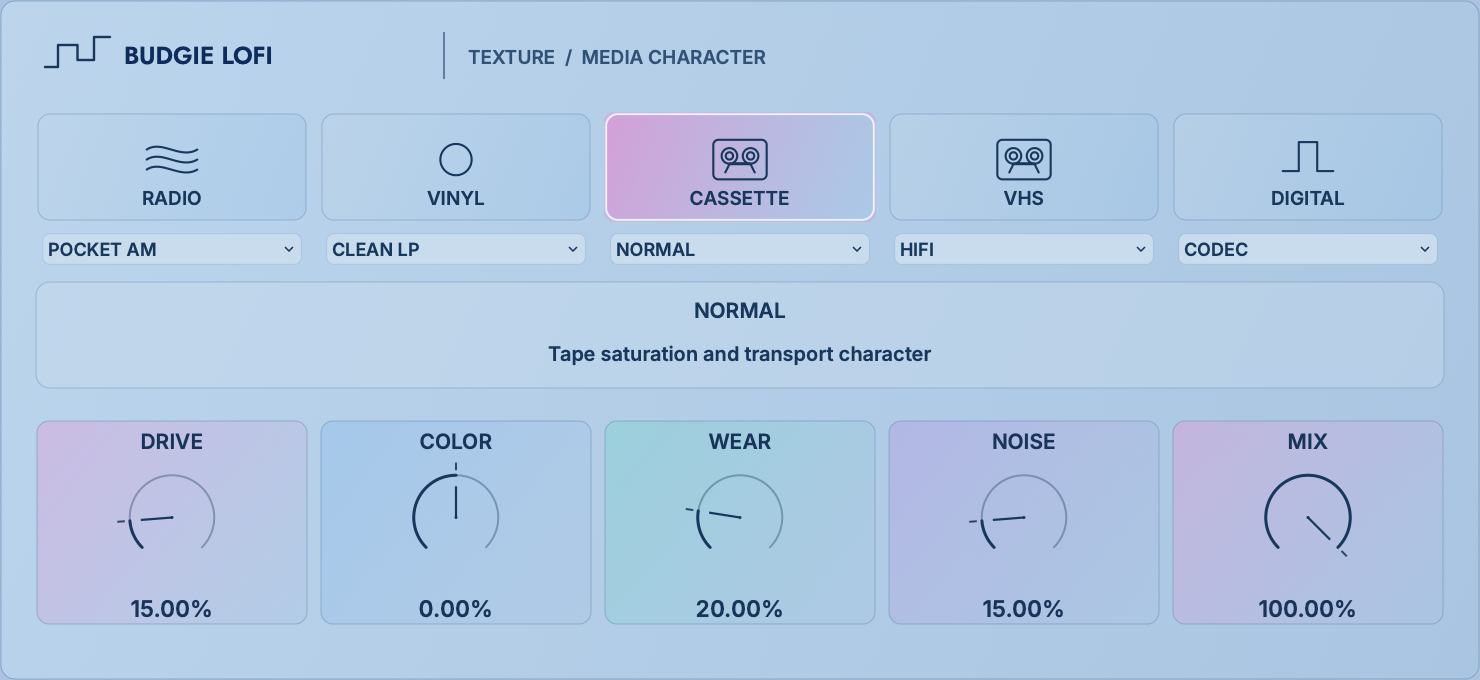
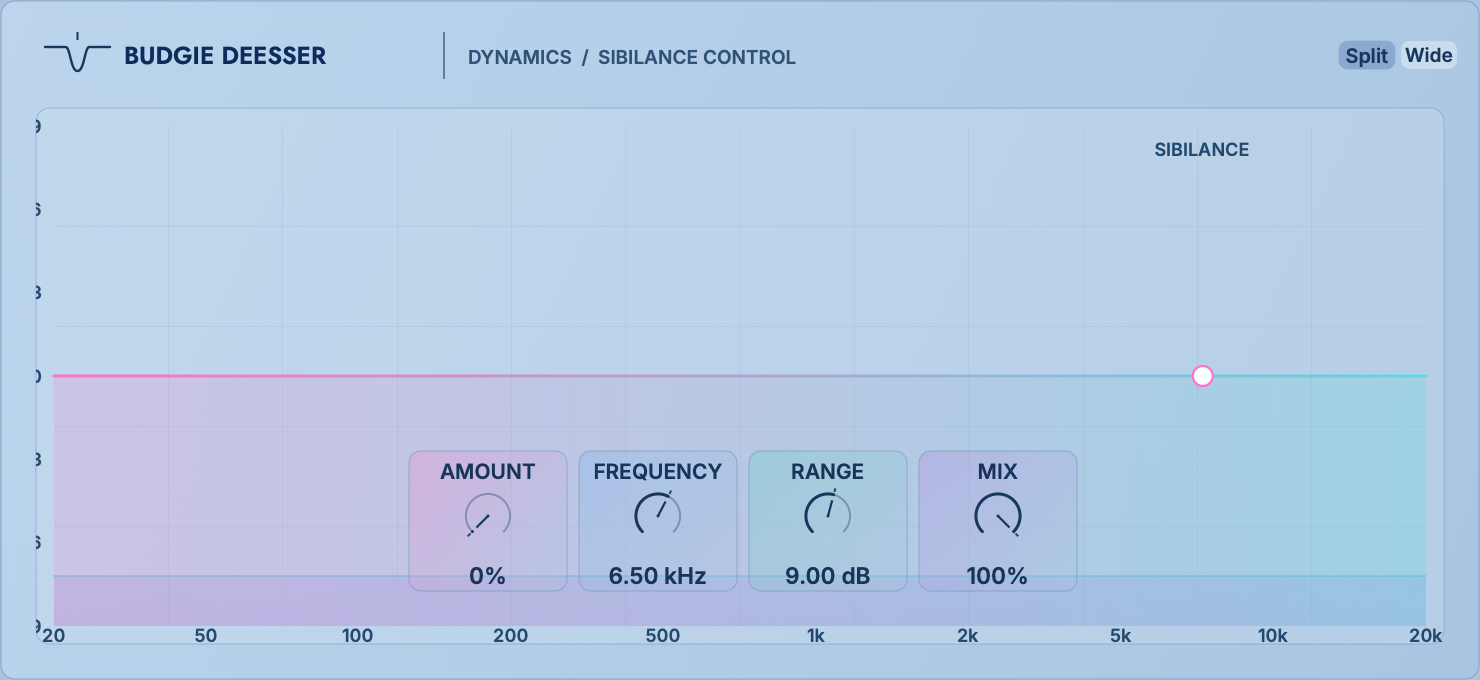
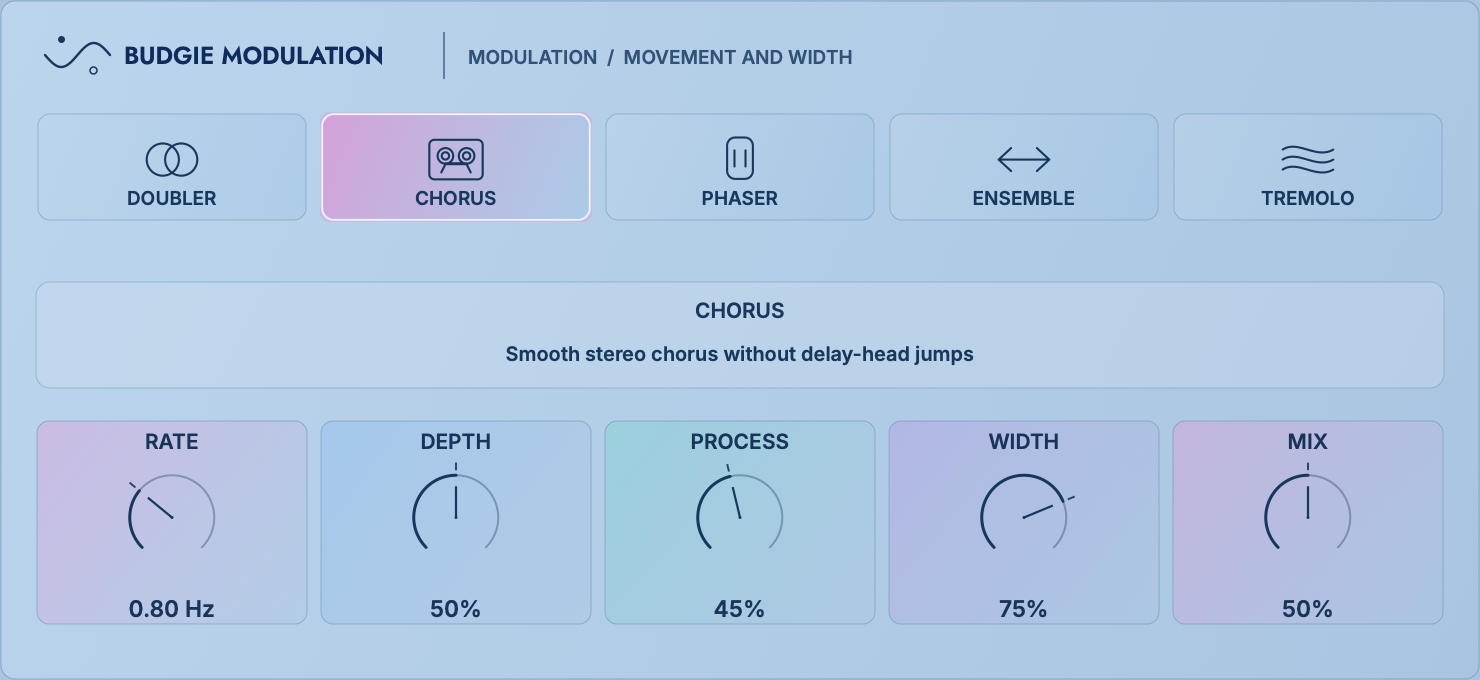
The library contains 14 built-in entries under Budgie Audio. Audio Link hosts them internally; drag them into a Rack like other effects. The three Compressor variants belong to one processing family.
| Family / entries | Main use |
|---|---|
| Budgie EQ | Frequency and tone shaping. |
| Budgie Compressor / Compressor Velvet / Compressor Vox | Dynamics, compression character, and vocal treatment. |
| Budgie Clip / Budgie Limit | Clipping, peak, and output control. |
| Budgie Color / Budgie Air / Budgie Tape | Colour, brightness, and tape character. |
| Budgie Width | Stereo width and image. |
| Budgie Space | Reverb and delay space. |
| Budgie Lofi | Vintage and degraded textures. |
| Budgie DeEsser | Sibilance and harsh high-frequency control. |
| Budgie Modulation | Chorus, phase, and movement effects. |
For individual processor controls, see the Budgie Essentials section of the MB Rack manual. Follow the interface in your installed version.
19
 ↗ Full image
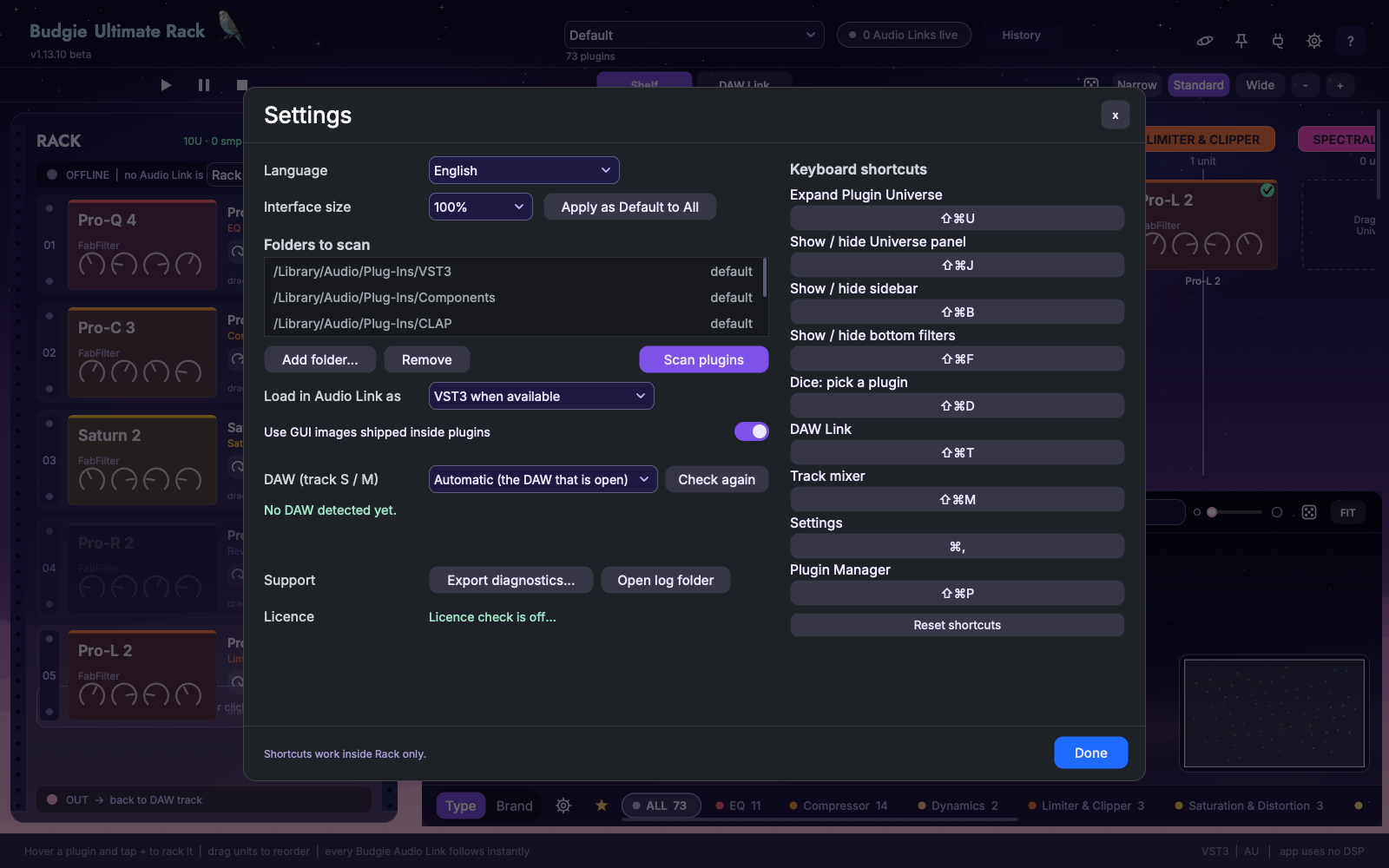
Settings contains language, UI scale and default scale, plug-in folders, preferred format, DAW choice, shortcuts, diagnostics, and licensing. The pin keeps the app on top; sidebar and Universe controls manage visibility. The play, pause and stop buttons above the left Rack control the connected DAW. Turn on ? help and hover for explanations. Help reflects customised shortcuts.
| Default shortcut (macOS) | Action |
|---|---|
| ⌘ F | Find a plug-in |
| ⌘ Z / ⇧⌘ Z (or ⌘ Y) | Undo / redo |
| ⇧⌘ U / ⇧⌘ J | Expand Universe / show or hide its panel |
| ⇧⌘ B / ⇧⌘ F | Show or hide Rack sidebar / bottom filters |
| ⇧⌘ D | Random Universe pick |
| ⇧⌘ T / ⇧⌘ M | DAW Link / Track mixer |
| ⌘ , / ⇧⌘ P | Settings / Plugin Manager |
To change a shortcut, click its binding in Settings and press the new combination. Escape cancels; Backspace / Delete clears. Conflicts require explicit reassignment. Reset shortcuts restores defaults. Text inputs and third-party editors may take keyboard focus.
20
↗ Full imageThe DAW project stores Audio Link’s chain, plug-in state, and mappings. The app’s library, Shelf, and preferences are stored locally and separately. App data is under ~/Library/Application Support/Budgie/UltimateRack, with presets in its presets folder. Rack presets use .budgierack; Shelf presets use .budgielanes.
Normal app edits support undo/redo and recent edit history. Do not assume every knob move inside a third-party editor belongs to the app’s edit history; detailed parameter undo depends on the effect and host. Safe writes and backups help protect app data, but still save DAW projects and export important presets regularly.
To move a project, install compatible Audio Link and third-party effects on the destination computer. A missing effect’s retained slot/state supports later recovery; it does not reproduce that effect while the plug-in is absent. Format or version differences can also affect restoration. Export a final audio version on the original machine before transferring important work.
21
Create R&B Vocal and Rock Drums Shelves with alternatives organised by type. Save each collection. Switch the Shelf for a new project, then build chains for the actual material.
Narrow Compressor to VCA and pick a random candidate. Try it on a test track, match level, and compare using B and Δ. Save a Rack preset when it works.
Insert an Audio Link on each track you want to manage. Review track names and chains in DAW Link, Option-copy reusable effects, and adjust faders for explicitly selected track groups.
22
↗ Full imageConfirm that Audio Link is inserted on the intended track and the app and DAW run on the same computer. Check the live Link count, then the Settings → DAW target.
Audio connection and host track control are separate paths. Check the OSC / MIDI Remote setup, ports, and status in the DAW setup chapter. Avoid duplicate track names.
Inspect its capture status in Plugin Manager, complete vendor activation, and recapture. A placeholder alone does not mean loading failed.
Confirm the corresponding Link is live and the effect has finished loading, then click its name or picture again. Some native-editor/host compatibility issues require individual investigation.
Check DAW input/output, mute/solo, Link output, slot B / MIX / LR-M-S / Δ, third-party licensing, and SC. Bypass individual slots to isolate the cause before clearing the chain.
Relax narrow filters or search; the only candidate may already be selected. Shelf randomisation also needs a column name matching a category or tag.
Inspect crash records in Plugin Manager and block the effect from loading in Audio Link. Its slot and saved state are retained; allow it again after resolving compatibility. Blocking does not uninstall the effect.
Check that the correct Link is connected, the chain contains no more than 8 effects, and all effects are loaded and can return complete state. Confirm integration support on both sides and destination capacity.
Settings → Export diagnostics… collects logs, versions, and plug-in crash notes without audio or projects. Include your DAW, macOS, plug-in format/version, steps, and screenshots when contacting hello@budgieaudio.com.
Budgie Ultimate Rack