Sample Similar
Select a sample and click Similar to rank candidates against it. Confirm the reference in the reference bar. Clear reference removes that step; check any remaining filters separately.
 Budgie Sound AgentUser manual
YOUR SOUNDS. CONNECTED.
Bring scattered samples, instruments and presets into one creative starting point. This guide follows the real interface through browsing, audition, AI search, similarity and receiving sounds in your DAW.
01
Find one sound, then bring it into your session.
Download Sound Agent and Budgie Hub from your account. In Agent, open Preferences → License & Trial and sign in through Hub. Follow the prompts to start a 14-day trial or activate your purchase.
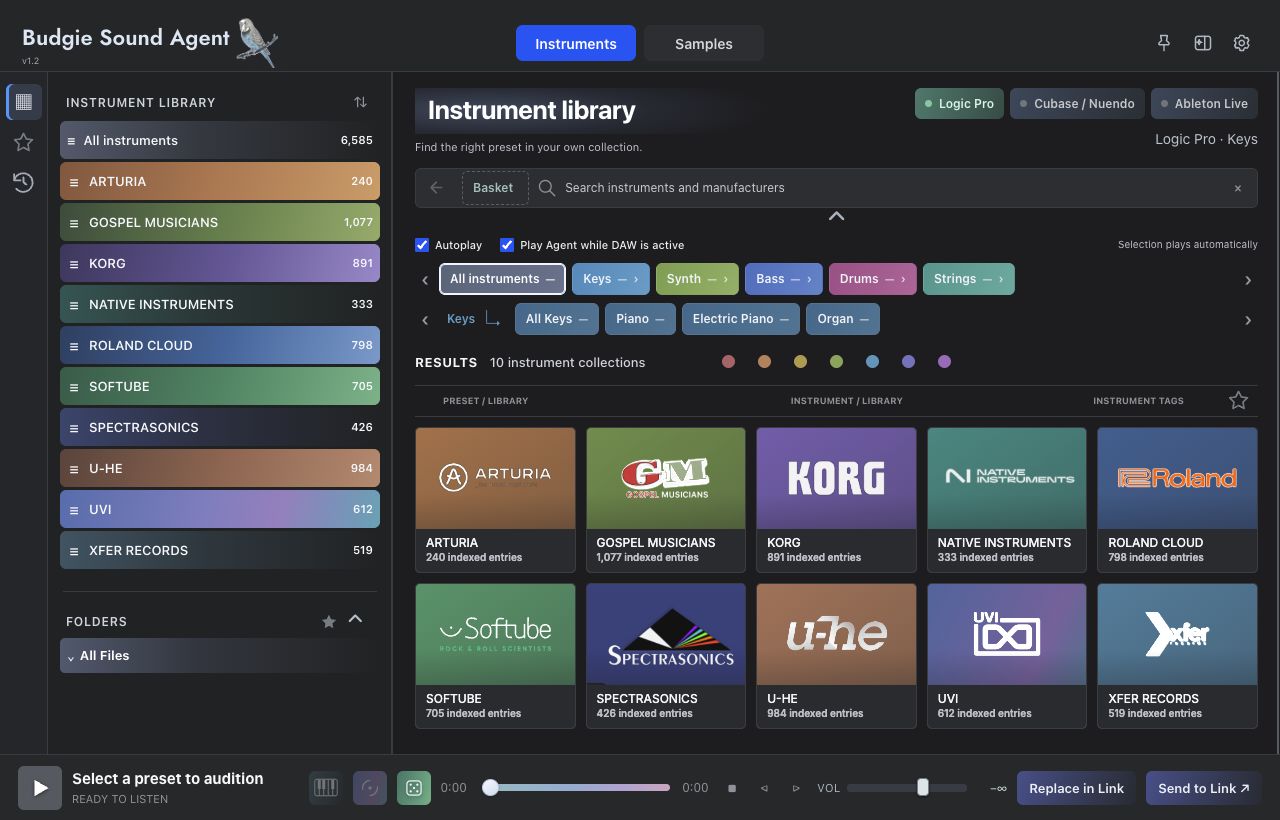
Choose Instruments for installed instruments and presets, or Samples for audio files. Each mode has its own library and filters. Budgie Finder on the right can search either one, or both with All.
In Samples, click + next to AUDIO LIBRARY to add a sample folder. In Instruments, check the brand list. After installing instruments or adding presets, refresh or rescan in Preferences → Library.
Select a result and press Space to play or pause. With Instrument Autoplay enabled, selecting a preset starts its audition. If a preview is unavailable, check whether that instrument supports live loading.
Drag a sample result into a DAW audio track. For an instrument preset, load Budgie Instrument Link on the destination instrument track, open its window, then return to Agent and click Send to Link.
02
One starting point. Two sound workspaces.
123456| Area | Purpose | Check first |
|---|---|---|
| Left navigation | Access libraries, favorites and history; browse brands, roots and folder trees. | Whether a brand, folder or collection limits the current scope. |
| Center workspace | Shows cards, categories, filters and results for the active mode. | Whether text, categories and other filters are combined. |
| Right assistant | Budgie Finder, voice input, reference audio and search progress. | Whether the top assistant button has hidden this panel. |
| Bottom audition strip | Playback, seeking, volume, similarity and Instrument Link sending. | Whether the selection and Link target are the intended sound and track. |
At the upper right, the pin keeps the window on top, the assistant button toggles the right panel, and the gear opens Preferences. Drag the library/folder divider or sidebar edge to resize those areas.
03
Manage indexes and paths while keeping your original sounds on your drive.
Switch to Samples, click + beside AUDIO LIBRARY and choose a folder. Allow Agent to read it, then wait for indexing. The library name and result count help confirm that it was added.
Select All libraries first, then browse a root or folder. Folder stars are shortcuts to locations; they have a different scope from the favorites stars beside individual sounds.
Reindex the relevant sample library after adding audio files. For new instrument presets, use Preferences → Library → Refresh new sounds. For newly installed plug-ins, use Rescan plugins.
In Library, use Choose plugin folder and scan… for a custom plug-in install location. Advanced → Plugin preset folders shows detected preset locations and can reveal them in Finder.
| Action | Scope | When to use it |
|---|---|---|
| Refresh new sounds | Updates sounds and preset directories in the instrument library. | An installed instrument gains presets or libraries. |
| Rescan plugins | Checks installed, supported AU / VST3 instruments again. | A newly installed or updated plug-in is missing. |
| Choose plugin folder and scan… | Adds and scans a custom plug-in location. | A plug-in uses a nonstandard install location. |
| Stop scan | Stops an active scan and waits for the status to update. | Pause the work to free resources and return later. |
| Prepare / Resume | Prepares preview-audio features for Instrument Similar. | Browsing works, but similarity preparation is incomplete. |
After moving a drive, changing a resource path or disconnecting external storage, check that the original path is accessible. Reconnect and refresh the affected library rather than clearing all personal data to fix one missing path.
04
Browse by brand. Choose by sound.
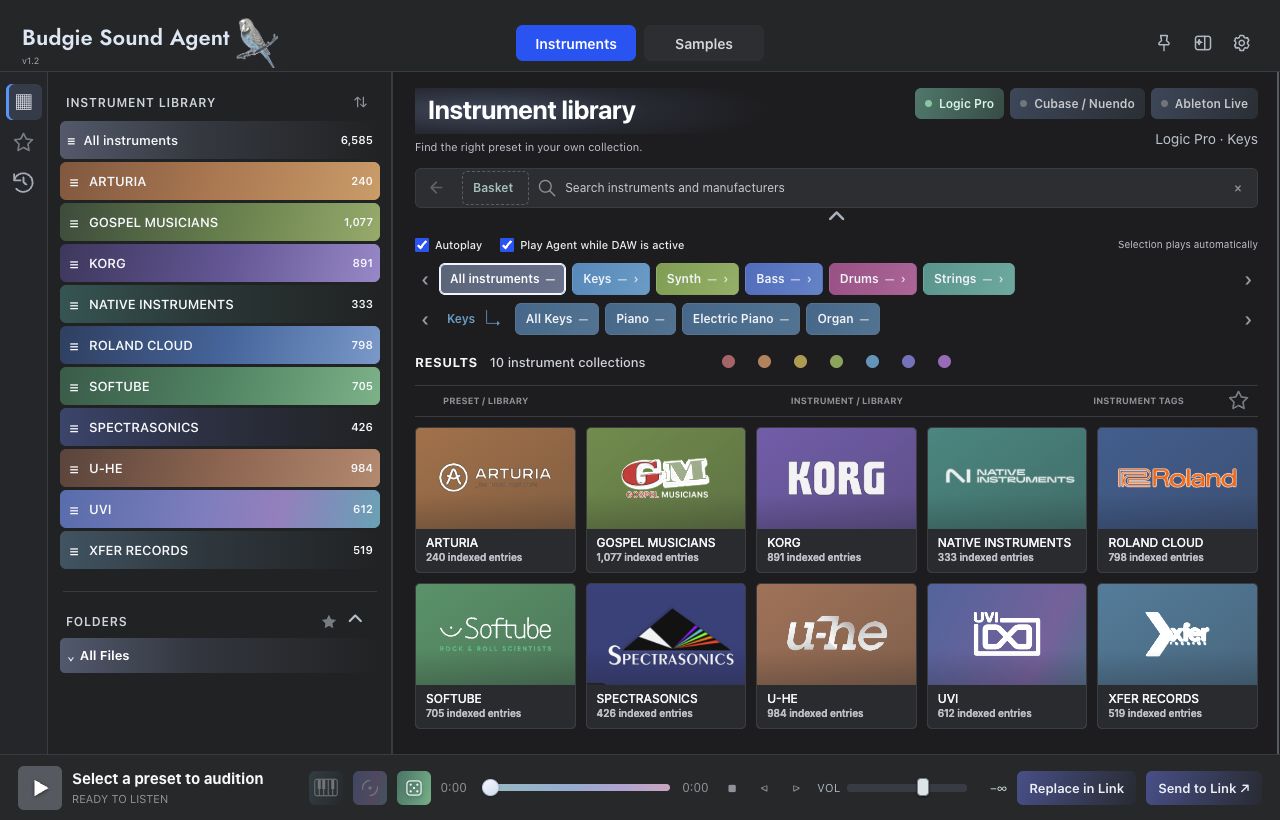
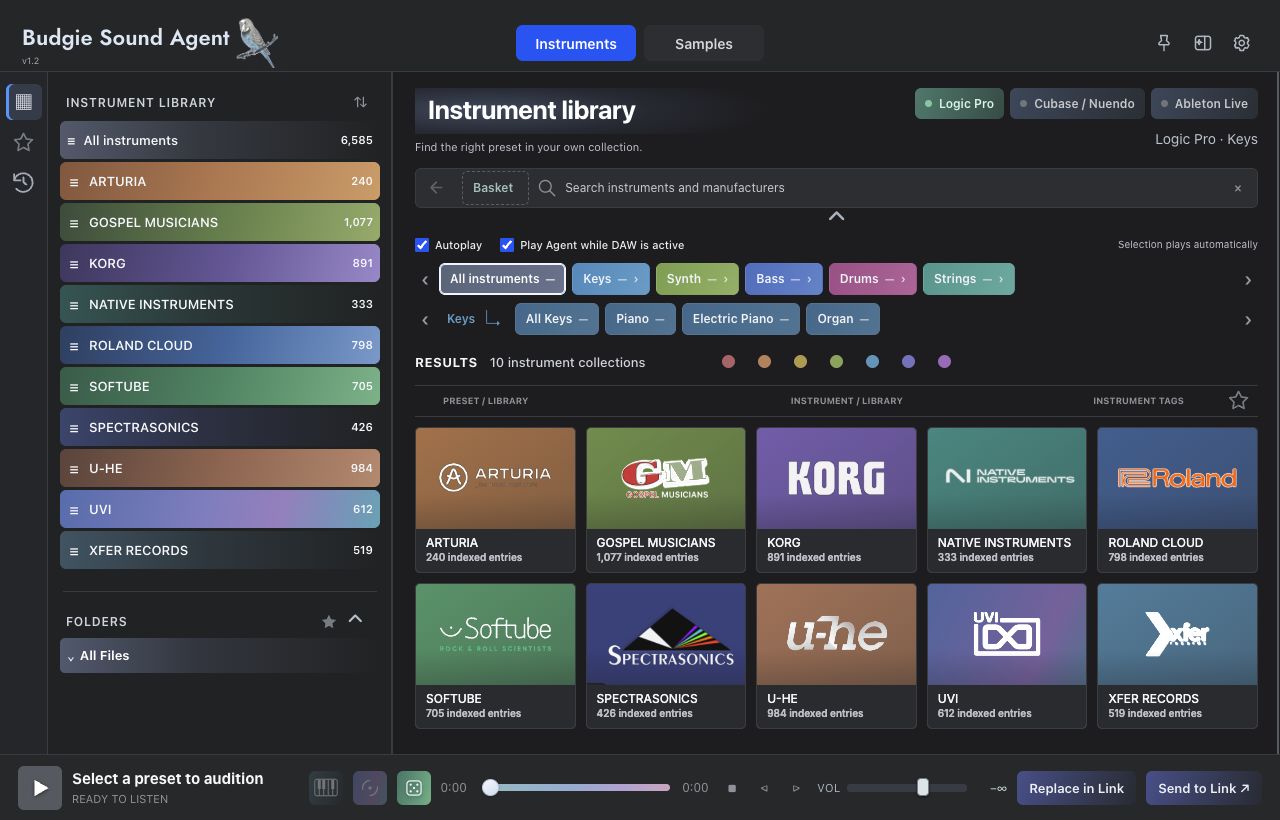
Click a brand card on the left to narrow the source; All instruments returns to the complete library. Within a brand, cards may represent products, libraries or folders.
Open a product to reach its presets. Families such as Keys, Synth, Bass, Drums and Strings expand into subcategories. Use those tags to narrow candidates. The back arrow navigates up; it does not delete resources.
Rows identify the preset, source and instrument tags. After selecting one, check the bottom status. Available previews can be auditioned; supported live instruments can be played. Identical names may still refer to different products or paths.
Star a sound to keep it, use Similar for related textures, or roll the dice within the current scope. When ready, send it to the connected Link.
| Control | Behavior | Practical guidance |
|---|---|---|
| Autoplay | Automatically auditions an available sound when a preset is selected. | Enable for rapid browsing; disable while organizing quietly. |
| Play Agent while DAW is active | Controls whether Agent can audition while the DAW is active. | If Agent and the DAW sound together, also check MIDI focus routing. |
| Search field | Finds resources using names, brands and available tags. | Start with a short instrument name, then try Finder for a descriptive query. |
| Result context menu | Edit tags…, Reveal in Finder and Audition preset. | Confirm the selected result before editing tags or revealing its file. |
05
Distinguish preview audio from a live instrument.
| Method | What you hear | Best for |
|---|---|---|
| Preview audition | An existing, readable audio preview from the library. | Fast comparison without waiting for a full instrument load every time. |
| Live performance | A supported installed instrument loads the selected preset and receives MIDI. | Testing velocity, register, sustained notes and actual playing response. |
| Performance after sending | The destination Link receives the preset for performance in the DAW project. | Arranging, recording MIDI and applying project processing. |
Use the bottom play button or Space to control audition. Seek with the progress bar and set the audition level with VOL. Keep your monitoring level comfortable when comparing presets; preview loudness can differ between resources.
Some presets need time to load their instrument and samples. Wait for the loading state to finish instead of repeatedly sending. If a live host cannot open, verify the instrument in its own app or DAW first, then check scanning and supported formats.
| Setting | Meaning | Trade-off |
|---|---|---|
| Fast switching · keep 3 instruments loaded | Kontakt fast switching keeps three instruments loaded. | Smoother switching at a higher memory cost. MIDI goes to the selected instrument. |
| Save memory · keep 1 instrument loaded | Keeps only one Kontakt instrument loaded. | Useful for limited memory or large libraries; switching may reload the instrument. |
| UVI playback engine | Chooses an installed Falcon or UVI Workstation engine. | Preset loading, MIDI audition and DAW sending use this choice. Uninstalled engines cannot be selected. |
06
Narrow the scope, then let your ears choose.
 123456
| Filter | How to use it | Keep in mind |
|---|---|---|
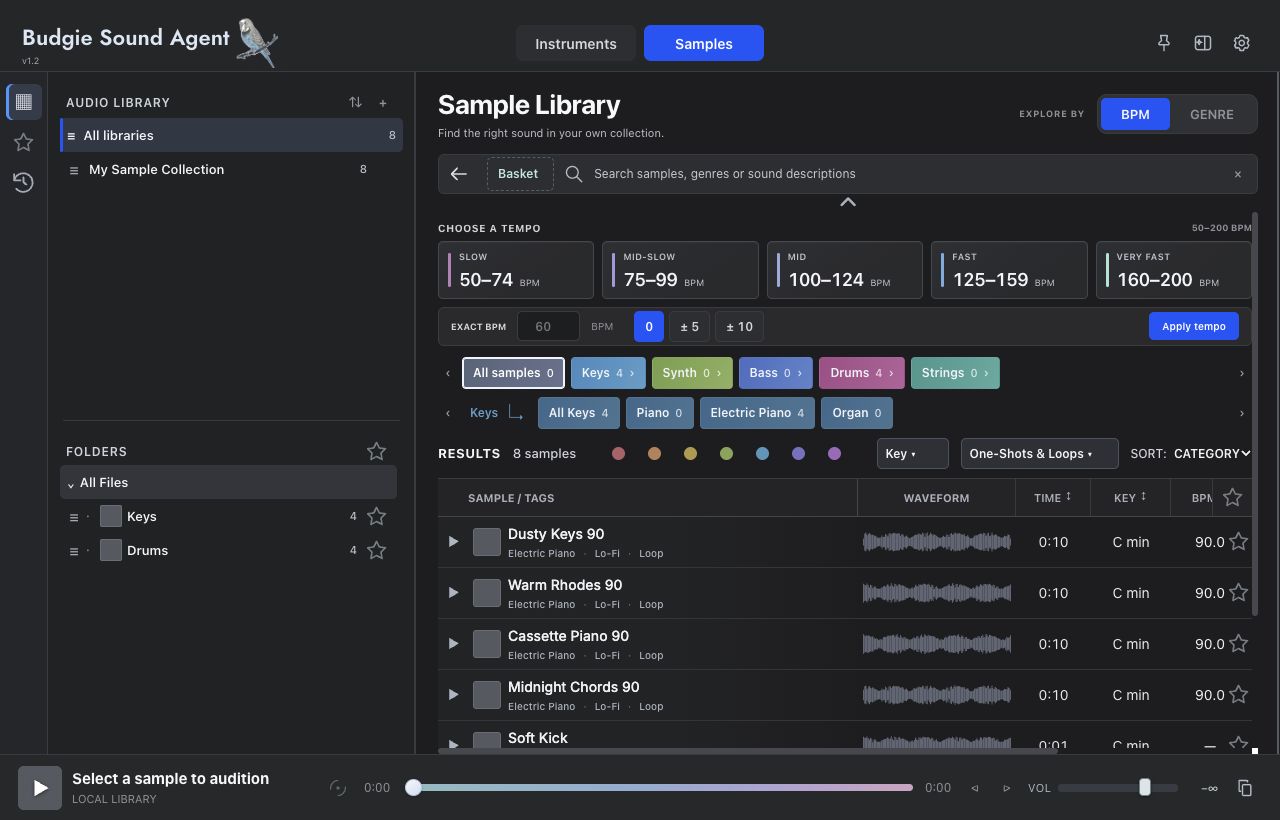
| BPM | Range cards span 50–200 BPM; Exact BPM and Apply tempo set a precise value. | Half- or double-time readings are possible. Ambient sounds and effects may have no useful BPM. |
| GENRE | Switch to genre browsing and use folder context and available tags. | Genre is interpretive. Correct unsuitable tags with Edit details. |
| Instrument category | Choose a family such as Keys or Drums, then a subcategory such as Piano or Kick. | Categories combine with other filters. Relax the scope if no results remain. |
| Key | Filter by note and Major / Minor, with sharp or flat spelling. | Unlabeled key is not necessarily an error. Drums and noise may not suit key filtering. |
| One-Shots & Loops | Show one-shots or loops only; Clear removes the type limit. | Type depends on available information and can need manual correction. |
| SORT | Sort by name, BPM, duration, key or recent content. | Sorting changes order; filtering changes the candidate set. |
Reset filters clears the current search and filters. Resize result columns at their edges. For long names, widen the name column or sidebar instead of shrinking the entire interface.
07
Drag audio. Send instruments through Link.
Select and audition a Sample result, then check its name, duration and BPM. Use Reveal in Finder when you need to confirm the actual file location.
Drag the result row into a location that accepts audio in your DAW. Sample results in Finder can also be dragged out; Instrument results use Send to Link instead.
After import, set the start, loop length and required time-stretch mode in your DAW. Agent’s BPM filter helps select material; it does not configure every host’s time stretching for you.
| Action | Purpose | Scope |
|---|---|---|
| Drag a result row | Hands the actual audio file to the host for import. | Sample results and sample entries in Finder. |
| ⌘C | Copies the selected sample for pasting where the destination app supports it. | Applies outside text fields and dialogs. Paste support depends on the destination app. |
| Reveal in Finder | Reveals the real file location. | Useful for checking paths, drive access or manual import. |
08
Describe what you need, then refine the search.
 1234
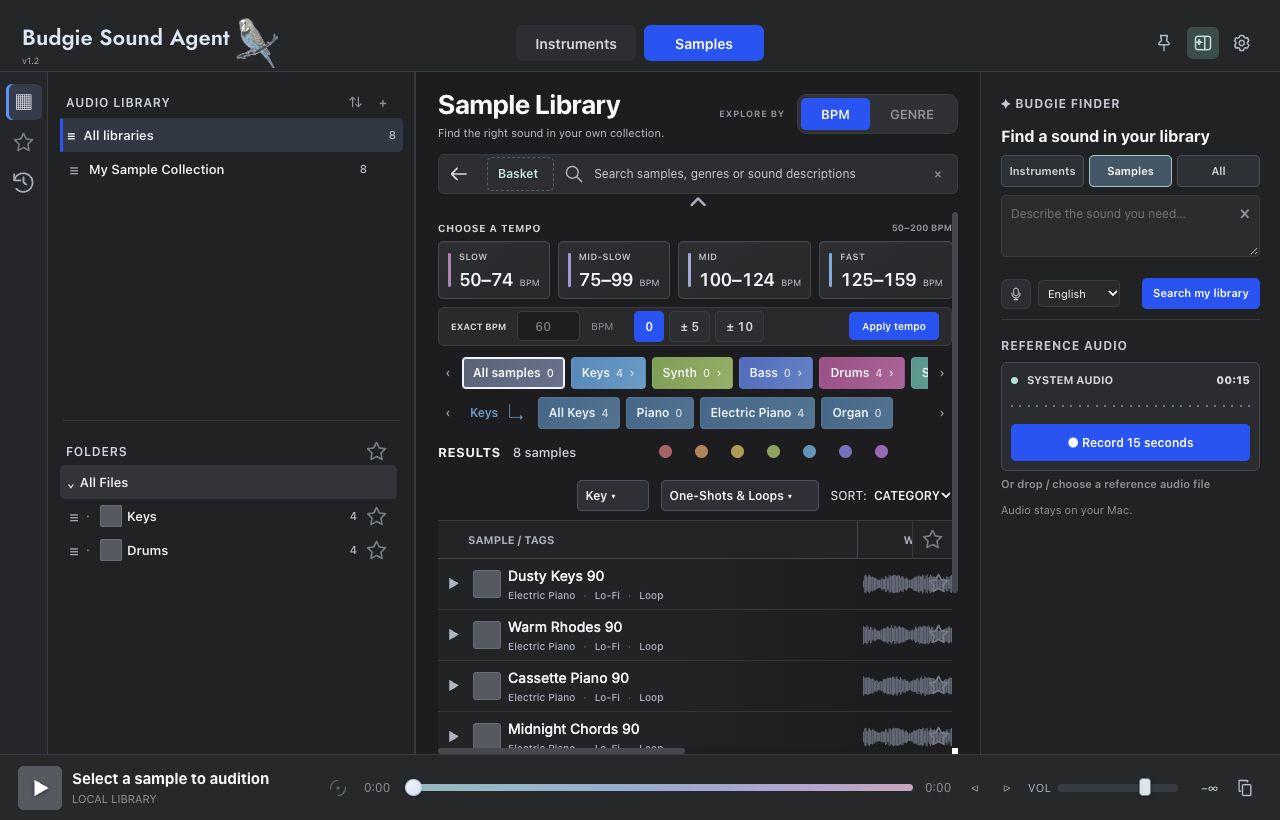
1234Choose Instruments, Samples or All in the right panel. Finder normally follows the active workspace; selecting All lets it search both resource types.
Try “warm electric piano with tape texture,” “90 BPM lo-fi drum loop,” or “short, dry, dark snare.” Combine instrument, texture, tempo and role, but begin with your two or three most important requirements.
Click Search my library or press Enter in the description field. Results show matching clues. Inspect details to distinguish user tags, official metadata, filenames, folder context and audio measurements.
Listen to a few results, then revise the description or scope. Back to library returns to ordinary browsing; Cancel search stops the active search. Clearing a reference and clearing text are separate actions.
| Example query | Suggested scope | If results miss the mark |
|---|---|---|
| Warm electric piano for R&B chords | Instruments | Keep Electric Piano and Warm first, then compare register and dynamics by ear. |
| 90 BPM lo-fi drum loop | Samples | Relax BPM or remove genre and confirm that your library contains loops. |
| Bright, short bell sound | All | Compare instrument and sample results, then choose what suits performance or direct arrangement. |
| Pad with a clear attack and restrained width | Instruments | Rewrite complex exclusions as positive descriptions and inspect the matching tags. |
09
Start with a spoken idea or a sound you hear.
Finder offers Chinese, English, Japanese, Korean, German, French, Spanish and Portuguese voice input. Choose the language you speak, rather than relying on the website language.
Click Voice input and grant the microphone or speech permissions requested by the system. Click again to stop, then wait for recognition to finish. The description field is read-only during recognition to avoid conflicting edits.
Recognized text appears in the description field for searching. If Dictation is off or on-device speech is unavailable, use Open Keyboard settings to check the system configuration. You can always type the same description instead.
| Entry | Operation | Result & limits |
|---|---|---|
| Record 15 seconds | Start recording system audio from other apps in REFERENCE AUDIO. You can stop early and analyze. | Up to 15 seconds. Requires macOS Screen & System Audio Recording permission. This is separate from voice input. |
| Or drop / choose a reference audio file | Choose or drop a readable reference audio file. | Useful for an existing recording or when system capture is inconvenient. |
| × beside the reference name | Removes the current reference while retaining other applicable search conditions. | Clear the reference before returning to text-only search. |
Use a clean passage that represents the target texture. Vocals, drums, bass and reverb interact in a full mix. Reference matching does not separate every track or guarantee the original source file.
10
Similarity suggests a direction, not an identical sound.
 123
123Select a sample and click Similar to rank candidates against it. Confirm the reference in the reference bar. Clear reference removes that step; check any remaining filters separately.
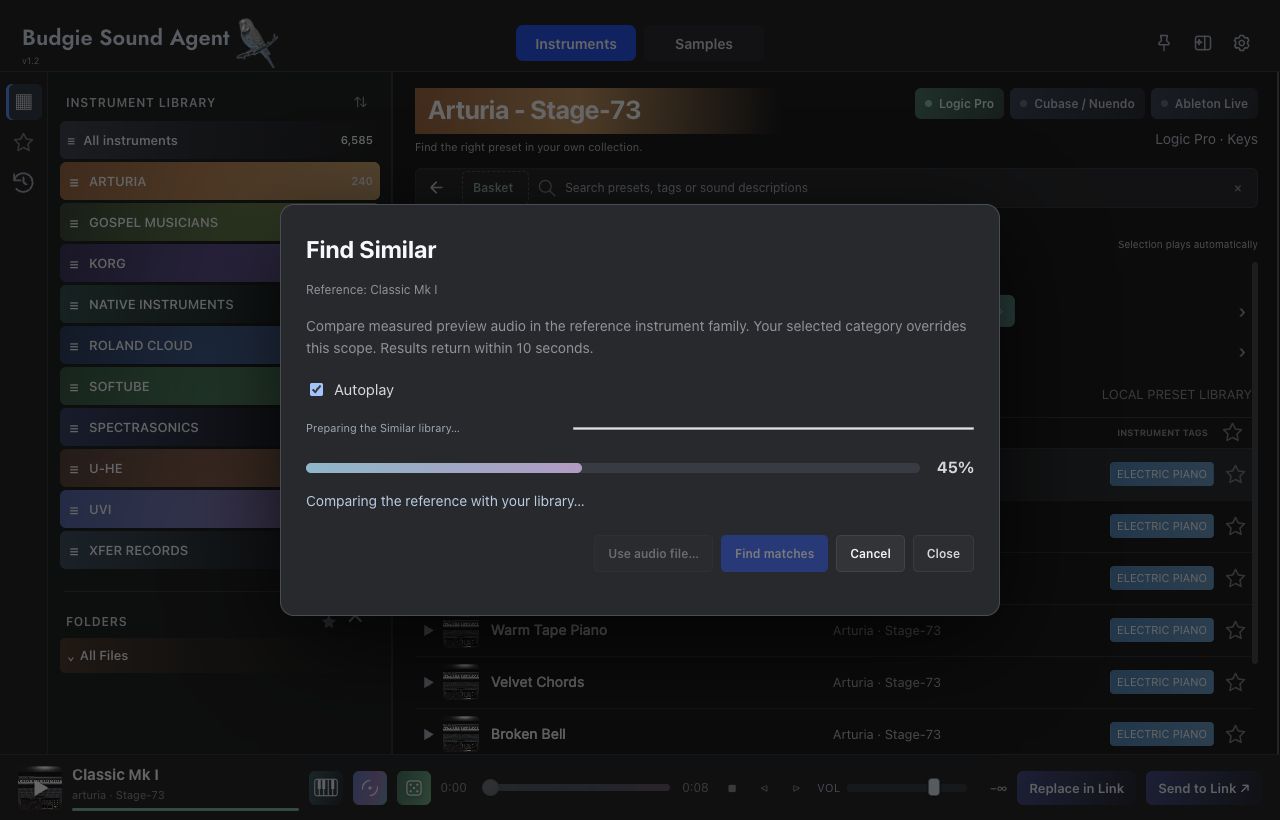
Select a preset and open Find Similar. The panel compares measured preview audio, normally within the reference instrument family. An explicitly chosen category can override that scope.
Use Use audio file… in Instrument Similar, or the reference entry in Finder. Decide whether you want sample candidates or instrument presets before searching.
Open Preferences → Library → Instrument Similar library and click Prepare / Resume. Use Refresh new instruments after adding instruments. Watch the status and progress; resources missing previews are reported separately.
Use the current preset or choose a file with Use audio file…. Very short, quiet or densely mixed references may not represent the quality you want to compare.
Click Find matches and wait for the search. Use each candidate’s play button to compare previews before selecting the preset. Autoplay controls automatic audition.
Change the reference or category and search again. Cancel stops the current computation; Close dismisses the panel. Scores rank candidates; they are not probabilities of being correct.
| Observation | Likely cause | Next step |
|---|---|---|
| Large library, few matches | Limited usable previews or category coverage. | Prepare or refresh Similar, then try a broader category. |
| High score, different sound | Audio features do not capture every performance, mix context or preference. | Audition a similar register and length, and compare the texture you actually need. |
| Preset without preview is absent | Without measurable audio, the preset cannot participate on the same audio evidence. | Use names, tags or Finder instead and verify that the instrument loads. |
11
Make room for surprise within a chosen scope.
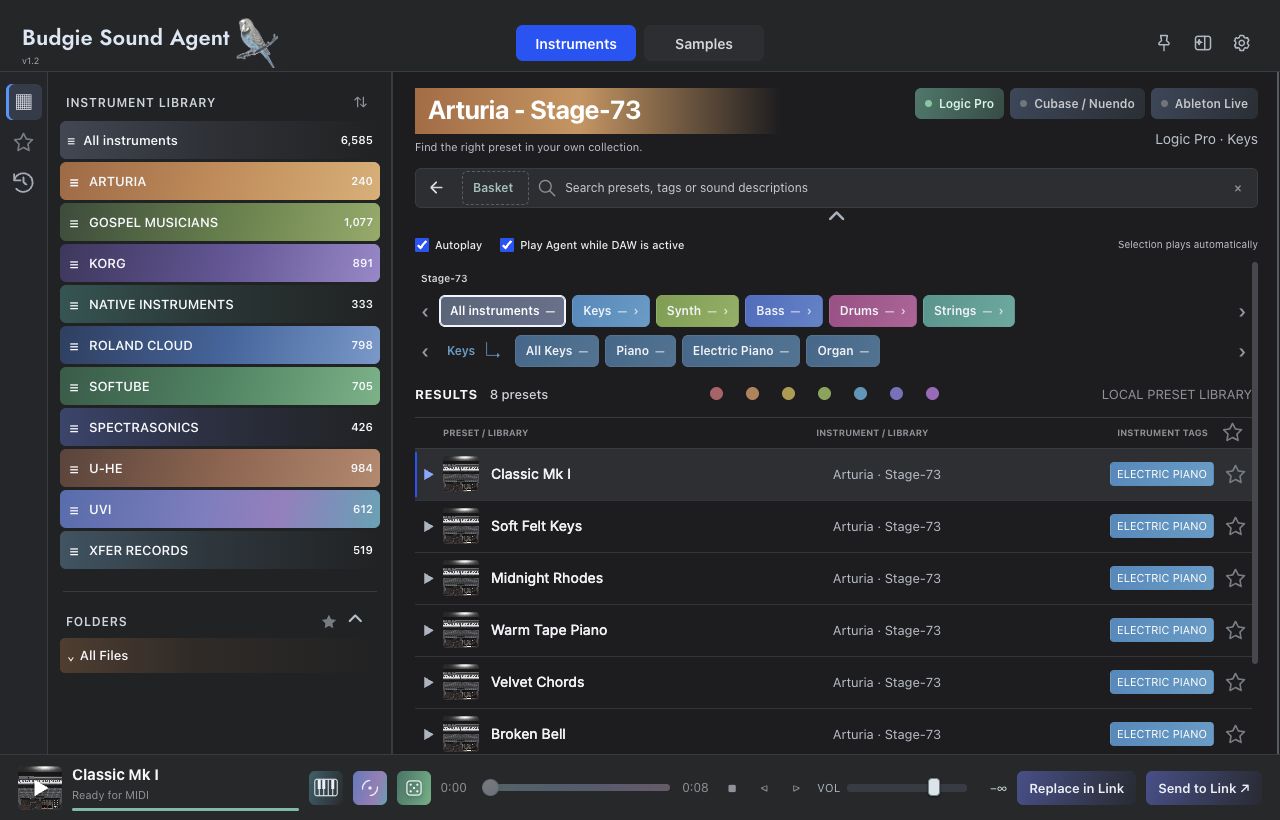
Begin with a brand, folder, instrument category or basket. A clear scope makes random choices more useful for the track.
Click the dice, check the newly selected preset and source, then audition or play it with MIDI. Random selection and automatic audition are separate states; silence alone does not mean selection failed.
Star a promising preset, or add its source to this track’s basket and keep exploring. Send to Link when ready so browsing does not unintentionally replace a sound already in use.
Randomize within Keys → Electric Piano and play the same chords to compare texture and attack.
Combine Pad sources from different brands in a basket and use the same register to explore weight and space.
If results drift from the goal, tighten the category or basket before rolling repeatedly.
12
Combine search scopes without copying or moving sound files.
 12
12| Basket | What goes in | Typical workflow |
|---|---|---|
| Instrument Basket | Supported brand, product or resource cards. | Choose a few instrument sources for a track, then search, categorize or randomize within them. |
| Sample Basket | Sample folders already indexed in the library. | Search drum, key or texture folders from different packs together. |
Drag a supported card or folder to Basket in the search bar and release when the target highlights. Sample folder rows can be dragged in; their handles also support sibling reordering.
Click Basket to browse the combined scope, then search or choose categories. Sample Basket is the union of its folder scopes; the audio remains in the original folders.
Use × on a mini-card to remove a source, or Clear to empty the basket. Duplicate sources do not need adding again. Removing a source does not delete its files.
13
Make each discovery easy to return to.
| Tool | Purpose | Scope |
|---|---|---|
| Sound star | Adds a sample or preset to that mode’s favorites. | A favorite does not copy audio or install an unavailable instrument. |
| Folder star | Returns quickly to a frequently used folder. | Managed separately from stars on individual sounds. |
| + Folder | Creates a collection folder inside Favorites. | All favorites gathers everything; Unfiled shows items without a collection. |
| Edit tags… / Edit details | Checks and corrects resource categories and descriptive metadata. | Tags affect later searches, not the sample waveform or the instrument’s sound. |
| Color labels | Colors results and lets you narrow the list by color. | Use a consistent personal meaning, such as candidate, used or organize later. |
| History | Revisits recently explored or used resources. | Star important sounds instead of relying on history as the only record. |
Organize favorite entries into your own collection folders. Check whether you are editing Sample or Instrument favorites first; identical names do not necessarily identify the same resource.
14
Confirm the receiver before sending the preset.
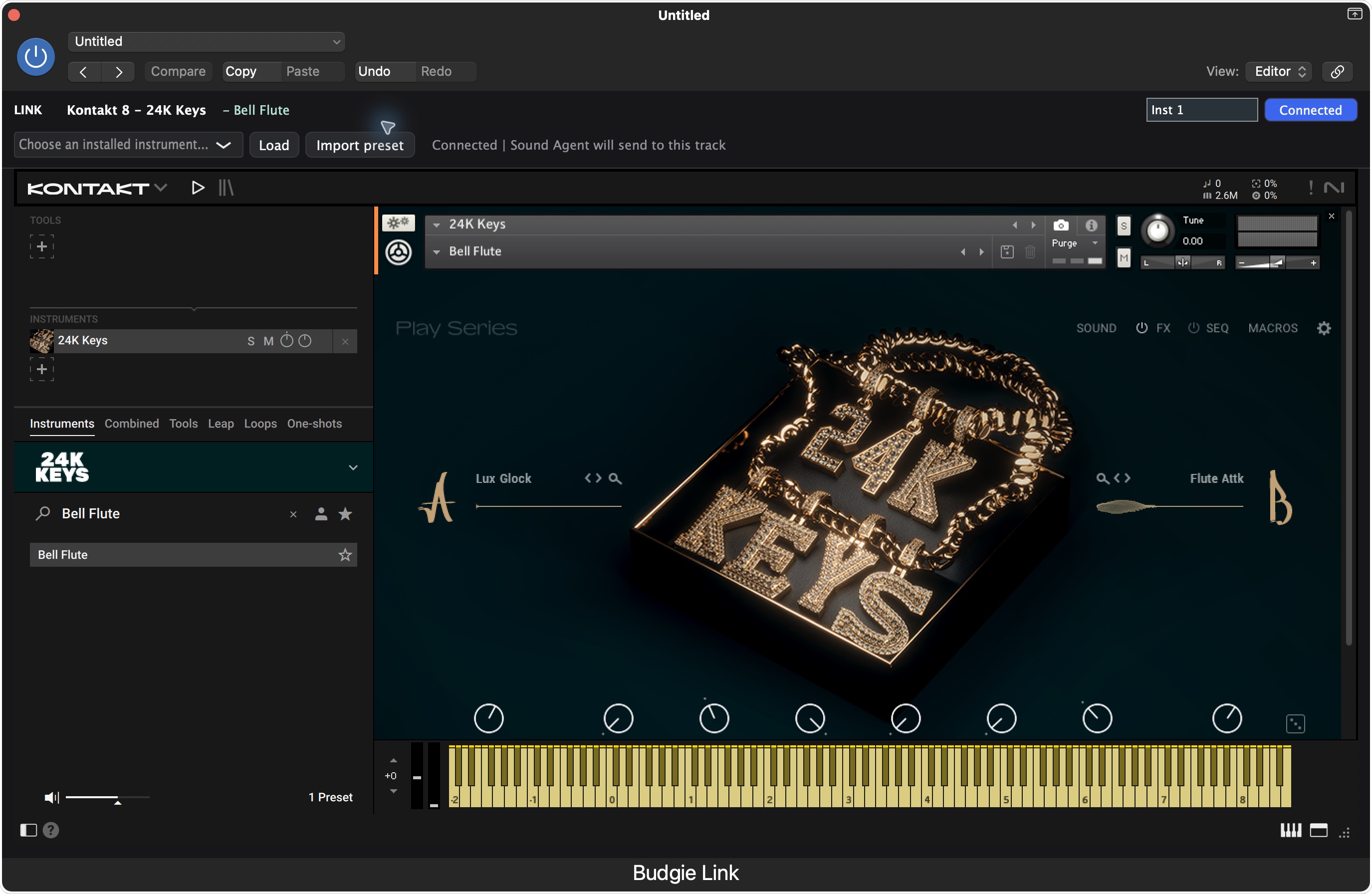
Create or select a software/MIDI instrument track in a supported DAW and insert the appropriate Budgie Instrument Link instrument. Logic uses AU; other hosts use the supported AU or VST3 instrument format.
Open the destination Link window so Agent can identify the receiver. With multiple Links, verify the destination label carefully. A green running-DAW indicator alone does not establish a connected track.
Select a supported Instrument preset and confirm it by previewing or playing. Check that the bottom connection state is available and still points to the intended track.
Click Send to Link and wait for Sending… to finish. The receiving Link shows the loaded instrument interface. A large sampled instrument may continue loading its samples.
Return to the DAW and play MIDI on the destination track. Verify the sound, output and selected preset, then save the project. Save a useful project state before replacing that sound later.
| State or button | Meaning | What to do |
|---|---|---|
| Send to Link | Hands the current supported preset to the connected receiver. | Check the target label and instrument license before sending. |
| Replace in Link | Changes the sound inside the connected Link; it does not promise a new audio track. | Both current sending controls target the connected Link. For a new track, create it and insert Link in your DAW first. |
| Sending… | Preset transfer or receiver processing is in progress. | Wait instead of starting repeated send requests. |
| Disconnected or unavailable | No receiver is selected, or the current sound is not sendable. | Open the destination Link, reselect a supported preset, and check installation and licensing. |
15
Check the plug-in format and destination track in each host.
| Host | Link format & track | Setup check |
|---|---|---|
| Logic Pro | AU · Software Instrument | Load Budgie Instrument Link in the instrument slot and open its window to identify the target. After sending, verify the embedded instrument and track MIDI playback. |
| Ableton Live | AU / VST3 · MIDI Track | Load the supported Link format on a MIDI track, choose the correct MIDI input and monitoring, then open the Link window before sending. |
| Cubase / Nuendo | VST3 · Instrument Track | Load Link on an instrument track and check input and monitoring. Use the destination Link window to identify the receiver. |
The top DAW buttons show running applications and the bound host; the bottom Link label identifies the receiver. These are related but different. If several DAWs are open, select the one you are working in, then open its destination Link.
If Link is missing after installation, restart the host or run its plug-in rescan. Look for the correct instrument format rather than an audio-effect slot.
16
Explore in Agent, then keep playing in your DAW.
Open Preferences → MIDI and enable Enable MIDI keyboard in Agent. Choose a keyboard or All MIDI inputs under Input device. Play a note and check activity and connection status. The interface reports a previously selected device that is temporarily unavailable.
Select your physical keyboard in Agent. Follow the MIDI setup dialog to identify the Agent input port offered to your DAW.
Configure your host as below. Keeping a parallel direct physical-keyboard path can create doubled notes or simultaneous playback after focus changes.
Play in the DAW, click Agent or its instrument window and play again, then return to the DAW. Confirm that only the intended destination sounds before marking the routing tested and finishing MIDI setup.
| Host | MIDI settings | Focus-routing configuration |
|---|---|---|
| Logic Pro | Settings → MIDI → Inputs | Follow the guide to enable Agent input and disable direct physical-keyboard input to the DAW. Keep the keyboard selected in Agent. |
| Cubase / Nuendo | Studio → Studio Setup → MIDI Port Setup | Enable Agent under In All MIDI Inputs and disable physical-keyboard inputs there. Set the instrument track to All MIDI Inputs. |
| Ableton Live | Settings → Link, Tempo & MIDI → MIDI Ports | Enable Track for Agent input and disable Track for direct keyboard inputs. Choose Agent under MIDI From; use Monitor In or Auto with the track armed. Playing notes alone does not require Sync or Remote. |
17
Seven sections for audio, libraries and your account.
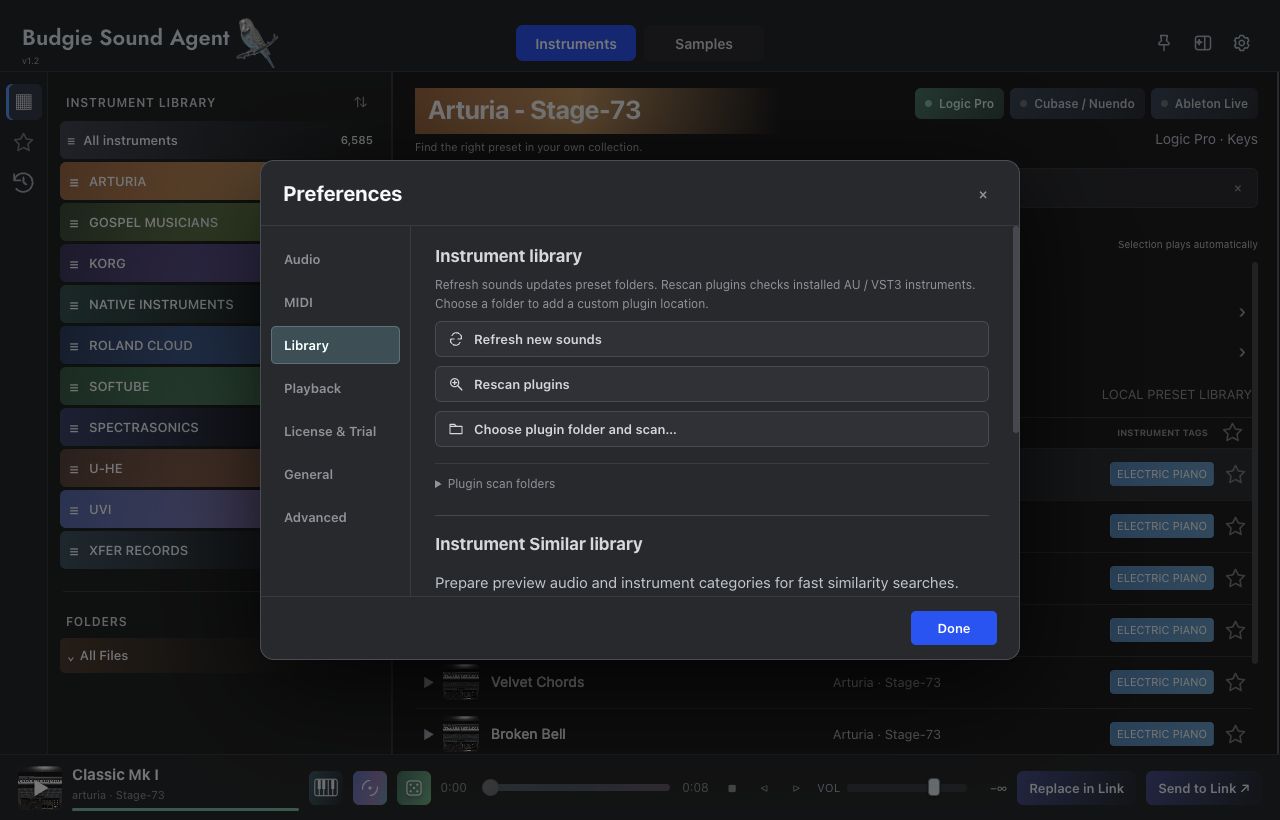 123
123| Section | Main controls | Purpose |
|---|---|---|
| Audio | Output device · Buffer size | View output device, sample rate and buffer duration. Changing the device changes macOS system output; devices that do not support writing restrict buffer changes. |
| MIDI | Enable MIDI keyboard in Agent · Input device | Enables live keyboard input, selects a device and reports MIDI activity and connection. |
| Library | Refresh new sounds · Rescan plugins · Similar library | Updates sound directories, scans plug-ins and prepares or stops Similar feature analysis. |
| Playback | Kontakt preset cache · UVI playback engine | Chooses fast switching versus memory saving and the UVI host used for playback. |
| License & Trial | Open Budgie Hub · Start 14-day trial · Check activation again | Checks account and license state and opens Hub for trials, purchase codes and devices. |
| General | Language · Interface size · Disk space | Sets interface language and 80%, 90%, 100%, 110% or 125% zoom; shows disk use and cleans disposable caches. |
| Advanced | Plugin calibration · Plugin preset folders | Checks calibration of a plug-in’s own browser controls and reveals plug-in/preset locations. |
Smaller buffers usually reduce playing delay but increase CPU pressure; larger buffers suit heavy instruments and higher loads. The displayed buffer duration is calculated from frames and sample rate. Actual latency also depends on the instrument, device and host path. Device or buffer changes can briefly interrupt audio.
Some instruments require locating their own PATCH, PRESETS, SEARCH or BROWSER controls. Plugin calibration opens the plug-in and saves positions relative to its window. Check it when that instrument’s browser fails or its version/layout changes; calibration is not library cleanup.
18
Know the difference between source sounds and working data.
| Data | Purpose | Cleanup behavior |
|---|---|---|
| Original samples & vendor libraries | The resources used for audition, loading and creation. | Clean disposable data does not delete original sounds or official previews. |
| Indexes, features & personal metadata | Startup indexes, current navigation caches, sound features, tags, favorites, baskets and settings. | The current cleanup function retains this data. |
| Retired caches & old index backups | Historical supporting data no longer needed. | Listed as Disposable data and eligible for cleanup. |
| Recordings & temporary analysis audio | Reference recordings support local matching; temporary Similar material has its own management limit. | Ordinary disposable-cache cleanup retains recordings; temporary analysis audio is released through its own lifecycle. |
Open Preferences → General → Disk space and click Refresh usage. Inspect Application, Data folder, Compressed sound features and Disposable data rather than the total alone.
Use Clean disposable data and wait for the result. The button may be unavailable when there is nothing disposable; this does not mean the library is damaged.
Library searching and audio analysis operate on local resources. Account sign-in, trials, device activation and cloud sync require a network connection. Voice input uses system services; on-device availability depends on the selected language and system prompts. Local audio analysis does not mean every product service works without a network.
19
Read the current scope and what each stage requires.
The scope below matches the current product page. A full range describes the product-family scope; it does not remove version or preset-format checks. Browsing, previewing, live performance and Send to Link still depend on installation, format and licensing.
| Brand / type | Current scope | Loading requirements |
|---|---|---|
| Native Instruments / Kontakt | Full Komplete suite; installed Kontakt libraries supporting nicnt registration. | Install and license the products; Kontakt libraries must meet the current registration requirements. |
| Xfer Records | Serum / Serum 2 | Use supported .fxp / .serumpreset files and verify the installed version. |
| Spectrasonics | Omnisphere presets and adapted Spectrasonics resources. | The product and resource directories must be available; preset loading follows current adaptation. |
| UVI | Full UVI instrument and sound-library range. | Install the libraries and select an available Falcon / UVI Workstation in Playback. |
| Arturia | Full Arturia instrument range. | Requires the relevant Audio Unit and recognizable presets. |
| Softube | Model 72 / 77 / 80 / 82 / 84 | Install the relevant products and use currently supported resources. |
| Roland Cloud | Full Roland instrument range. | Depends on installed products and currently loadable states. |
| KORG | Full KORG instrument range. | Supported file formats and factory presets. |
| u-he | Repro-1 / Repro-5 / Zebra2 / ZebraHZ / Zebralette | Currently adapted presets and the corresponding installed products. |
| Gospel Musicians | BASSalicious 2 / Neo-Soul Keys Studio 2 / Pure Synth Platinum / TGX-85 / Pure SUB / Splat-to-Clat | Supported native preset formats. |
| GForce | OB-E / Oddity3 / SEM / DMX / IconDrum | Adapted XML presets and the corresponding Audio Unit. |
| Synapse Audio | DUNE 3 / Legend HZ / Obsession | Supported installed products and presets. |
| Excite Audio | Adapted Bloom instruments. | Supported native presets. |
| Plugin Alliance | DS Thorn | Supported .thorn presets. |
| Audio Unit / NKS | Other adapted AU and NKS resources. | .aupreset and adapted NKS states; not every plug-in is supported. |
20
Connect the tools into a creative workflow.
Go to Instruments → Keys → Electric Piano and audition existing presets. Ask Finder for a warm electric piano with a soft attack. Put suitable brands in Basket and compare random choices with the same chords. Insert Link on a DAW instrument track, send the chosen sound and save the project.
Choose drum folders or Sample Basket. Set Exact BPM to 90, start with 0 tolerance, then widen to ±5 as needed. Explore loops and one-shots separately. Drag the chosen material into your DAW and set its start and time stretching there.
Use a short passage with relatively little layering. Choose Samples or Instruments in Finder and add the reference file, then describe the part you care about, such as snare or pad. Audition the leading results, then continue Similar from an individual candidate rather than relying solely on the full mix.
Star sounds you actually want to revisit, then create Favorites folders by track or role. Organize with stable instrument and texture tags. Next time, start from favorites and baskets rather than browsing the entire drive again.
Save the current project state and confirm the destination Link. Compare two candidates in Agent using the same MIDI phrase, then Replace in Link. To keep both sounds simultaneously, create a second DAW track with its own Link first; repeated sends do not automatically create another track.
21
Shortcuts depend on focus and context.
| Action | Context | Result |
|---|---|---|
| Space | Main result area, outside text inputs and open dialogs. | Plays or pauses the current sample or instrument audition. |
| ↑ / ↓ | Sample / Instrument result list. | Moves between neighboring results; audition follows the current state. |
| Enter | Finder description field. | Submits the search; Shift + Enter keeps multiline input. |
| ⌘ , | Main application. | Opens Preferences. |
| ⌘ C | Selected Sample, outside text inputs and dialogs. | Copies the sample for a compatible destination application. |
| Click a sample waveform | Sample result row. | Auditions from the clicked position. |
| Right-click a result | Resource result. | Opens available actions such as tag editing, file reveal or audition. |
| Drag sidebar edges & dividers | Library and folder areas. | Resizes the view without changing the sound. |
On this manual page, / focuses search and Escape clears or closes results. Contents links navigate only when clicked. Manual-page shortcuts are separate from shortcuts inside the application.
22
One Budgie account for downloads, licenses and devices.
| Item | Current release notes |
|---|---|
| Platform | macOS 13+ · Apple Silicon |
| Components | Sound Agent standalone app + Budgie Instrument Link AU / VST3 receiver + Budgie Hub for accounts and licenses. |
| Full trial | 14 days, started through the product licensing page and Budgie Hub. |
| Trial devices | One computer per product; check License & Trial for the actual state. |
| Purchased license | Supports two computers; manage devices in Hub or your account. |
| Online checks | The current licensing interface specifies a trial online check within 72 hours and paid-license renewal within 30 days with 7 days of renewal grace. The dates displayed on your licensing page govern the actual state. |
| Offline activation | Currently unavailable. |
Check the available release in your website account and follow the installers for Sound Agent, Link and Hub. Quit DAWs that use Link before installing it.
Sign in to Budgie Hub using the email used for purchase. Register purchases with the activation code in the payment email; start a trial from the product’s License & Trial page.
Return to Agent and click Check activation again to confirm trial or paid status. When changing computers, manage old device slots in Hub or your account rather than purchasing the same product again.
23
Troubleshoot the stage that failed instead of resetting everything.
Confirm the folder appears in AUDIO LIBRARY and wait for indexing. Check drive access and permissions, then use All libraries and Reset filters. If files moved, restore the path or add their actual folder.
Open Preferences → Library, run Rescan plugins, then Refresh new sounds. Add custom locations with Choose plugin folder and scan…. Verify the instrument architecture, format and licensing against the current release.
Check selection, playback state, VOL and system output. The preview may be missing, or live loading may still be reading samples. Verify that the preset opens in the original instrument.
Verify live-performance support and wait for loading. Check the instrument’s own volume, range and output. MIDI reaching Agent does not mean a playable instrument is already loaded.
Check whether the physical keyboard feeds both applications directly. For focus routing, enable Agent input and remove the duplicate direct path according to MIDI setup. Test both Agent and DAW destinations.
Insert the correct Link format on the destination track and open its window. Reselect a supported preset and check the connection label, instrument installation and license.
With multiple Links, open the intended receiver window and verify Agent’s bottom target label. Save the project before sending. Use separate tracks and Links to retain multiple sounds.
Check track MIDI input, monitoring/arming, output and mute state. Wait for sample loading and confirm the expected preset inside Link.
Check scope and folders, shorten the query, and keep the instrument and most important texture. Verify indexing and tags. A direct name search can sometimes work better.
Check progress in Preferences → Library and use Prepare / Resume or Refresh new instruments. Missing previews reduce measurable candidates. Try a reference with a preview and broaden the category.
Check the voice language and system Dictation settings, and grant requested permissions. If on-device speech is unavailable, use Open Keyboard settings to inspect support or type the query.
Confirm another app is playing and check macOS Screen & System Audio Recording permission. Reopen the app if the system requests it after a permission change. An existing reference file can replace capture.
Half/double-time ambiguity is common. Use filenames, the audible beat and musical context, and correct tags or widen tolerance when necessary. Do not discard material based on one number alone.
Try Kontakt Save memory and reduce simultaneous heavy hosts. Pause unnecessary Similar preparation, consider a larger audio buffer, and wait for disk loading to finish.
Favorites still point to the original resources. Restore the drive/path and refresh the library. Favorites do not keep independent audio copies.
The website region/language selector controls web pages. App language is set in Preferences → General → Language; Finder voice language is chosen separately.
Check the Hub account email, network and product registration. Click Check activation again in License & Trial and review device and online-check dates. Contact support if the state remains incorrect.
Include Agent/macOS versions, DAW and plug-in versions, instrument and preset format, reproduction steps and a status screenshot. Do not send passwords, activation codes or a complete commercial library.
For further help, contact hello@budgieaudio.com or use Software support on the website Contact page. Identify the failed stage: folders, preview, live loading, MIDI or Link receiving.
Find, listen, play, then return to your track.